
Keyboard Navigation Issues in E-Commerce Audits
Keyboard navigation issues hinder e-commerce accessibility, affecting user experience and business performance. Learn how to resolve these challenges effectively.

Keyboard navigation problems are blocking millions of users from fully accessing e-commerce sites. 94% of the largest online retailers fail to meet accessibility standards, with 64% struggling with keyboard navigation and 45% having features that are completely unusable via keyboard. These issues frustrate users, lead to abandoned carts, and expose businesses to legal risks under accessibility laws like WCAG and ADA.
Here’s the problem: many sites lack visible focus indicators, misuse non-semantic HTML, trap users in menus or modals, and have illogical tab orders. Fixing these issues improves usability for people relying on keyboards, including screen reader users and individuals with mobility impairments. Plus, accessible sites boost conversions, reduce cart abandonment, and perform better in search rankings.
Key Solutions:
- Add clear focus indicators using CSS.
- Use semantic HTML for interactive elements.
- Prevent keyboard traps in modals and dropdowns.
- Maintain a logical tab order.
- Test with keyboards and accessibility tools like Axe or Lighthouse.
Accessibility isn’t just about compliance - it’s about creating a better shopping experience for everyone. Fixing these issues is a win for users and businesses alike.
Common Keyboard Navigation Problems in E-Commerce
Understanding and addressing keyboard navigation issues is key to making e-commerce platforms accessible and user-friendly.
Missing or Hidden Focus Indicators
Focus indicators are visual markers that show which element is currently active for keyboard users. When these indicators are absent or poorly designed, navigating a site becomes challenging. Shockingly, 48% of major e-commerce sites fail to ensure that focus indicators are always visible. Often, designers remove default focus outlines for aesthetic reasons, unintentionally making the site harder to navigate. Without clear indicators, users - especially those with low vision or cognitive difficulties - may leave the site before completing their purchase.
Instead of removing focus indicators, developers should enhance them using CSS pseudo-classes like :focus or :focus-visible. This approach allows for custom designs that align with the site's look while ensuring the indicators are clearly visible against any background.
Interactive Elements That Don't Work with Keyboards
A common issue in e-commerce is the misuse of non-semantic elements like <span> or <div> for interactive features. These elements lack the inherent keyboard functionality of semantic HTML elements such as <button>, <a>, or <input>. This oversight can make buttons, links, and dropdowns inaccessible to keyboard users. For instance, users might find themselves unable to tab through form fields in the correct order, activate buttons with the Enter key, or navigate dropdown menus with arrow keys. These problems are particularly frustrating during checkout when access to payment buttons or form fields is critical.
Using semantic HTML elements is a straightforward solution. These elements come with built-in keyboard support, ensuring proper focus management and a smoother user experience.
Keyboard Traps
A keyboard trap occurs when users navigating with a keyboard cannot move out of a component, effectively trapping them. While only 9% of e-commerce sites have this issue, it can completely block users from completing tasks. For example, product filter dropdowns might not allow users to exit with the Escape key, or checkout modals might trap focus without an obvious way to close them. Even navigation menus can restrict tabbing, leaving users stuck.
To avoid this, developers should ensure users can always exit interactive elements, typically by pressing the Escape key or tabbing out. For modals, the <dialog> element is a great choice, as it includes built-in accessibility features like focus management and trapping.
Confusing Focus Order
Focus order refers to the sequence in which elements are highlighted as users navigate with the Tab key. A logical focus order mirrors the natural reading flow of a page - top to bottom, left to right. However, 30% of e-commerce sites have elements that appear in an illogical sequence. For instance, tabbing on a product page might jump from the header to the footer, then to the sidebar, creating a disjointed experience.
This can be especially disorienting for users with cognitive impairments. Maintaining a logical focus order is crucial, particularly during tasks like filling out forms, where skipping fields can lead to errors. Developers can achieve this by sticking to semantic HTML and avoiding unnecessary tab order customizations.
Complex Navigation Menus
Navigation menus, especially megamenus and dropdowns, often pose significant challenges for keyboard users. Many rely on hover-based interactions, which keyboards cannot trigger. Additionally, these menus frequently lack support for arrow key navigation, making it hard to move between items. In some cases, dropdown menus even trap focus, preventing users from accessing other parts of the site.
To make these menus accessible, developers should ensure full keyboard support. This includes enabling navigation with Tab and arrow keys, providing clear focus indicators, and allowing users to exit menus with the Escape key. Properly designed menus help users navigate seamlessly, even in complex layouts.
How to Audit Keyboard Navigation
Auditing keyboard navigation involves a mix of manual testing and using developer tools to uncover accessibility issues that automated checks might miss.
Manual Testing Methods
Manual testing is the backbone of a solid keyboard navigation audit. Start by disabling your mouse to fully experience the website as a keyboard-only user. This helps you identify barriers firsthand.
Use essential key commands to navigate:
- Tab: Move forward through elements
- Shift+Tab: Move backward
- Enter: Activate links or buttons
- Space: Interact with checkboxes or toggles
- Escape: Close modals or dropdowns
Begin at the browser’s address bar and navigate through every interactive element on the page. Try completing key tasks - like adding items to your cart, browsing product categories, or checking out - using only your keyboard. If any action requires a mouse, note it as a violation.
Pay close attention to focus indicators. These visual cues show your current location on the page. If the focus jumps unpredictably or disappears, it signals a navigation issue.
Some areas are more prone to keyboard navigation problems and deserve extra attention.
Key Areas to Test
Certain parts of a website often present challenges for keyboard users. Here’s where to focus:
- Navigation menus: Test dropdowns and mega menus. Can you open submenus, move between items with arrow keys, and close menus with Escape?
- Product filters: These are often problematic; research shows 70% of fashion e-commerce sites fail in this area. Check sliders, dropdowns, checkboxes, and other filtering tools for keyboard compatibility.
- Forms: Ensure you can tab through fields in a logical order, interact with date pickers, and submit forms. Pay special attention to custom elements like multi-step wizards or styled dropdowns.
- Modal dialogs: When a modal opens, the focus should shift to it and remain trapped inside until closed. Make sure Escape dismisses the modal and focus returns to the triggering element.
- Carousels: Verify you can navigate slides, pause auto-advancing content, and use all controls without a mouse.
After manual testing, developer tools can help you dig deeper into any issues.
Using Developer Tools
Browser developer tools provide critical insights to complement manual testing. Use the Elements panel to inspect the DOM and check for focusable elements. Look at tabindex values:
tabindex="-1": Focusable programmatically but skipped in the tab order.- Positive values: Can disrupt natural focus flow, creating confusion.
Check ARIA attributes like aria-expanded and aria-hidden to ensure they communicate the correct states. For instance, a dropdown button should indicate whether it’s open or closed, and hidden content should include aria-hidden="true" to prevent screen readers from announcing it.
The Console is another valuable tool. Use it to simulate keyboard events or log focus changes for debugging. For example, if a dropdown doesn’t close with Escape, inspect the JavaScript event listeners to find missing handlers. You can also type document.activeElement in the console to see which element currently has focus.
Chrome DevTools includes built-in accessibility audits that flag common keyboard navigation issues. While these audits don’t replace manual testing, they’re a helpful starting point for spotting problems like missing focus indicators or incorrect ARIA usage.
Lastly, the Sources panel lets you review JavaScript code managing keyboard interactions. Look for event listeners tied only to mouse actions (like click or mouseover) without corresponding keyboard equivalents (keydown or keyup). This often explains why certain elements fail for keyboard users.
For complex widgets like date pickers or autocomplete fields, inspect the code to ensure proper focus management. Verify that keys like Tab, Enter, and Escape trigger the right actions and that focus transitions logically between elements.
How to Fix Keyboard Navigation Problems
Once you've identified keyboard navigation issues, it's time to address them to ensure full accessibility. The fixes focus on resolving missing focus indicators, improper focus order, and keyboard traps.
Adding Focus Indicators
Never remove the default browser focus styles unless you're replacing them with something better. Developers often disable the default blue outline for aesthetic reasons, but this creates a significant barrier for accessibility. Instead, design custom focus indicators that align with your brand while remaining highly visible.
Use CSS pseudo-classes like :focus and :focus-visible to create clear, high-contrast outlines or highlights. The Web Content Accessibility Guidelines (WCAG) 2.1 recommend a minimum contrast ratio of 3:1 between focus indicators and adjacent colors. A thick blue or yellow outline often works well across various backgrounds.
Here's an example of CSS for adding focus indicators:
button:focus {
    outline: 3px solid #0066cc;
    outline-offset: 2px;
}
For more complex designs, such as image overlays or textured backgrounds, consider using box-shadows for added flexibility:
.product-card:focus {
    box-shadow: 0 0 0 3px #ffcc00, 0 0 0 6px #000000;
}
Always test your focus indicators across different browsers and devices. What looks clear in Chrome might be less visible in Safari, so consistent testing ensures a better experience for everyone.
Fixing Focus Order
After adding visible focus indicators, the next step is to establish a logical focus order. A predictable tab order helps users navigate your site intuitively, following the visual hierarchy. When focus jumps around unexpectedly, it can confuse users and make essential tasks, like completing a purchase, unnecessarily difficult.
For custom elements, use the tabindex attribute carefully:
tabindex="0": Includes the element in the natural tab order.tabindex="-1": Removes the element from the tab order but allows programmatic focus.- Positive values: Creates a custom tab order but can disrupt the natural flow.
The focus order should match the visual layout. For example, if your navigation menu is at the top of the page, it should be the first stop in the tab sequence. Similarly, filters on the left-hand side should come before the product grid on the right.
Test the tab order by navigating your site using only a keyboard. Can users logically move from browsing products to adding items to their cart and checking out? If focus jumps unpredictably - like from the header to the footer and then back to the middle - you'll need to adjust your HTML structure or tabindex values.
Dynamic content, such as search suggestions or product recommendations, requires special attention. When new elements load asynchronously, ensure they appear in logical positions within the tab order without disrupting the user's current focus.
Preventing Keyboard Traps
Keyboard traps occur when users get stuck in a component and can't navigate away using standard keyboard controls. This issue is common in modals, carousels, and custom dropdowns where developers overlook proper focus management.
For modals, ensure focus moves to the first interactive element when the modal opens. Users should be able to tab through all focusable elements within the modal, and when they reach the last element, the focus should cycle back to the first. Pressing Escape should close the modal and return focus to the trigger element.
The HTML <dialog> element offers built-in support for focus trapping and keyboard navigation. For example, in June 2024, a major US retailer improved checkout completion rates by 18% after redesigning their modal dialogs with the <dialog> element, adding focus indicators, and enabling Escape key functionality.
For custom dropdowns and menus, follow these guidelines:
- Arrow keys should navigate between menu items.
- Enter or Space should select an item.
- Escape should close the menu and return focus to the trigger.
- Tab should move to the next focusable element outside the menu.
Carousels can be tricky because they often auto-advance. Provide keyboard-accessible controls for play/pause, previous/next navigation, and direct slide selection.
Here's a JavaScript example for implementing focus trapping in modals:
function trapFocus(modal) {
    const focusableElements = modal.querySelectorAll(
        'button, [href], input, select, textarea, [tabindex]:not([tabindex="-1"])'
    );
    const firstElement = focusableElements[0];
    const lastElement = focusableElements[focusableElements.length - 1];

    modal.addEventListener('keydown', (e) => {
        if (e.key === 'Tab') {
            if (e.shiftKey && document.activeElement === firstElement) {
                e.preventDefault();
                lastElement.focus();
            } else if (!e.shiftKey && document.activeElement === lastElement) {
                e.preventDefault();
                firstElement.focus();
            }
        }
    });
}
Testing and Validating Accessibility
After implementing fixes, the next critical step is thorough testing to ensure those improvements are effective. For instance, 94% of top-grossing e-commerce websites fail to meet WCAG 2.1 AA accessibility standards - a clear sign of how much work remains to be done in this area.
Manual vs. Automated Testing
Both manual and automated testing are essential for validating keyboard accessibility, though each serves a distinct purpose. Manual testing involves navigating your site using only a keyboard, helping you identify issues like confusing focus order, poor focus indicators, or custom widgets that don't fully support keyboard use. Studies reveal that manual testing often uncovers persistent accessibility challenges that automated tools miss.
When manually testing, focus on common user tasks. Can users search for products, filter results, add items to their cart, and complete checkout using just a keyboard? Ensure that all interactive elements and dynamic content are functional, with logical tab orders, visible focus indicators, and escape mechanisms working as intended.
Automated tools like Axe, Lighthouse, and WAVE are great for detecting technical issues, such as missing ARIA attributes, improper HTML structures, or elements that lack keyboard operability. While these tools can quickly pinpoint code-level problems, they cannot evaluate whether focus indicators are visible enough or if the tab order feels intuitive to users.
A combination of both methods is the most effective approach. Start with automated scans to catch code issues, then follow up with manual testing to confirm the site’s usability in practical scenarios.
Browser Compatibility Testing
Keyboard navigation can behave differently depending on the browser, as rendering engines and default accessibility support vary. For example, something that works flawlessly in Chrome might show broken focus indicators in Safari or inconsistent tab orders in Firefox. For US-based e-commerce sites, testing on Chrome, Firefox, Safari, and Edge is essential, as these are the most widely used browsers among American users.
When testing across browsers, look for inconsistencies in focus visibility, tab navigation, and custom component functionality. Document any browser-specific issues and verify that fixes work consistently across all target browsers. Incorporating automated cross-browser testing into your workflow can help catch these issues early and prevent regressions.
WCAG and ADA Compliance
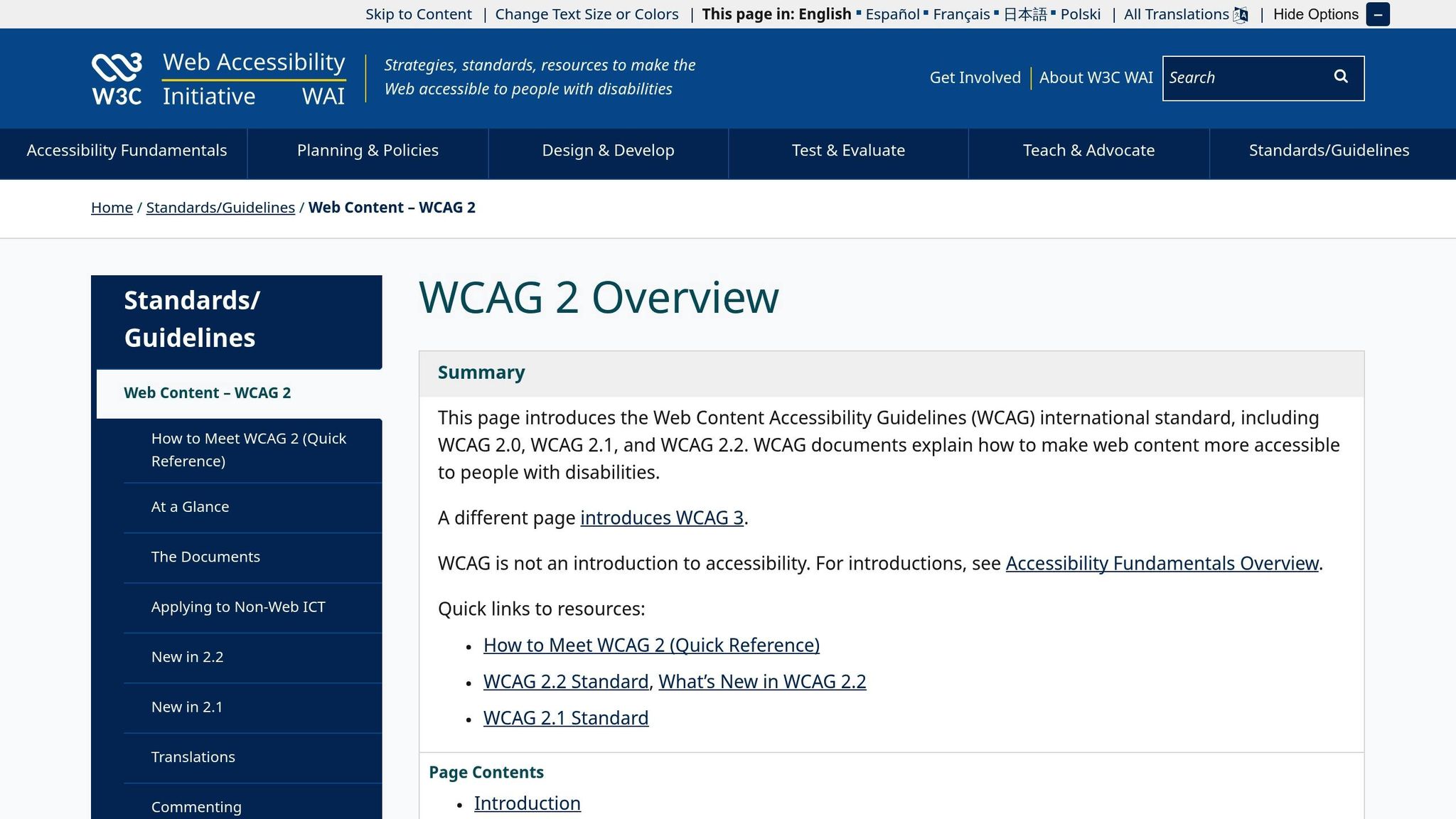
WCAG 2.1 Level AA is widely regarded as the standard for keyboard accessibility compliance and is a frequent reference point in ADA-related lawsuits. Key requirements include ensuring all interactive elements are keyboard-operable, providing visible focus indicators, maintaining a logical tab order, and eliminating keyboard traps.
The numbers paint a troubling picture: 64% of major e-commerce sites struggle with keyboard navigation compliance, with 45% having features that are entirely inoperable via keyboard, and 48% failing to display visible focus indicators. Even worse, 9% of sites have elements that trap keyboard focus, making it impossible to navigate away without assistance.
To ensure compliance, create a WCAG-based checklist and systematically test each requirement. Document your testing process and the steps taken to address any issues. This not only supports compliance efforts but also helps ensure accessibility remains a priority as your site evolves.
| WCAG Requirement | What to Test | Common Failures |
|---|---|---|
| Keyboard Operability | All interactive elements work with Tab, Enter, Arrow keys | Dropdowns, carousels, or buttons requiring a mouse |
| Focus Indicators | Clearly visible outlines or highlights on focused elements | Missing styles, low contrast, or aesthetic removals |
| Focus Order | Logical tab sequence following visual flow | Skipping key elements or unpredictable tabbing |
| No Keyboard Traps | Users can navigate away from any component | Modals, dropdowns, or carousels trapping focus |
Brands like Starbucks and Nike prove that accessibility doesn't mean sacrificing design or functionality. These sites feature logical tab orders, prominent focus indicators, and fully keyboard-operable components, blending accessibility with a polished user experience.
Regular audits are key to maintaining compliance as your site evolves. Establish processes for ongoing monitoring, and whenever possible, involve users with disabilities in the testing phase. The financial cost of inaccessible websites is staggering - UK businesses alone lost an estimated $21.4 billion in 2019 due to accessibility issues. Documenting your findings and actions ensures continuous improvement and helps future-proof your site.
Conclusion: Making Keyboard Accessibility a Priority
Keyboard accessibility plays a crucial role in the success of e-commerce businesses. Shockingly, 94% of top-grossing e-commerce sites fail to meet WCAG 2.1 AA standards, highlighting a significant gap in the industry’s efforts toward inclusivity. Making keyboard accessibility a priority not only offers a competitive advantage but also helps mitigate legal risks.
The stakes are high - both financially and legally. For instance, UK businesses reportedly lost £17.1 billion in 2019 due to accessibility barriers. In the U.S., lawsuits related to accessibility continue to rise, underscoring the urgency for compliant design. Beyond avoiding legal trouble, accessible websites open doors to a larger audience and deliver better experiences for all users, not just those with disabilities.
Key practices like implementing focus indicators, maintaining a logical tab order, and ensuring all elements are keyboard-operable form the backbone of accessibility. Companies like Starbucks and Nike have proven that accessibility can coexist with sleek design and advanced functionality, leaving no room for excuses when it comes to inclusion.
To sustain keyboard accessibility, it’s essential to weave it into your routine workflows. Regular audits, proper team training, and establishing clear testing protocols are non-negotiable. By addressing issues proactively and systematically, businesses can enhance user satisfaction, lower cart abandonment rates, and reduce legal exposure.
For a deeper dive into accessible design, DeveloperUX offers valuable resources to guide your efforts. The ultimate goal isn’t just meeting compliance standards - it’s about creating seamless e-commerce experiences for every customer, no matter how they interact with your site.
Ignoring keyboard accessibility isn’t just a missed opportunity - it’s a risk your business can’t afford to take.
FAQs
What legal risks can businesses face if their e-commerce site has poor keyboard navigation?
Businesses that neglect proper keyboard navigation on their e-commerce websites could face legal challenges tied to accessibility compliance. In the U.S., the Americans with Disabilities Act (ADA) mandates that websites be accessible to people with disabilities, including those who navigate using only a keyboard. Falling short of these requirements could lead to lawsuits, hefty fines, and a damaged reputation.
To avoid these issues, follow the Web Content Accessibility Guidelines (WCAG). These guidelines offer practical steps to enhance keyboard usability, such as maintaining a logical tab order, using visible focus indicators, and ensuring all site functions work without requiring a mouse.
How can e-commerce websites ensure their keyboard navigation is accessible for all users?
To make your website accessible for keyboard navigation, start by thoroughly testing it using only a keyboard. Pay close attention to key areas like menus, forms, and interactive elements - think buttons or product filters. Check that users can move through elements in a logical sequence with the Tab key, activate features using Enter or Space, and close dropdown menus or modals with the Esc key.
It's also crucial to include visible focus indicators, such as outlines or highlights, to help users see exactly where they are on the page. Regularly testing with assistive technologies like screen readers can uncover additional usability issues. These steps ensure a more seamless experience for those relying on keyboard navigation.
How can businesses enhance focus indicators to improve keyboard navigation on their websites?
To make keyboard navigation more user-friendly, businesses can take a few straightforward steps to improve focus indicators. Start by ensuring that these indicators - like outlines or borders - are easy to spot and stand out from the rest of the design. Using high-contrast colors is key here; it helps these elements pop, even against complex or colorful backgrounds. Avoid subtle changes, like slight color variations, as they can easily go unnoticed.
It's also important to keep focus indicators uniform across all interactive elements - this includes buttons, links, and form fields. Consistency makes navigation smoother and less confusing. To catch any issues, test your website thoroughly with just a keyboard. This hands-on approach can reveal missing or unclear focus indicators. Regularly gathering feedback from keyboard-only users can also provide valuable insights to fine-tune the experience, making your site more accessible for everyone.