Best Practices for Balancing Security and UX in Tools
Learn effective strategies to balance security and user experience in collaboration tools, ensuring protection without hindering workflows.

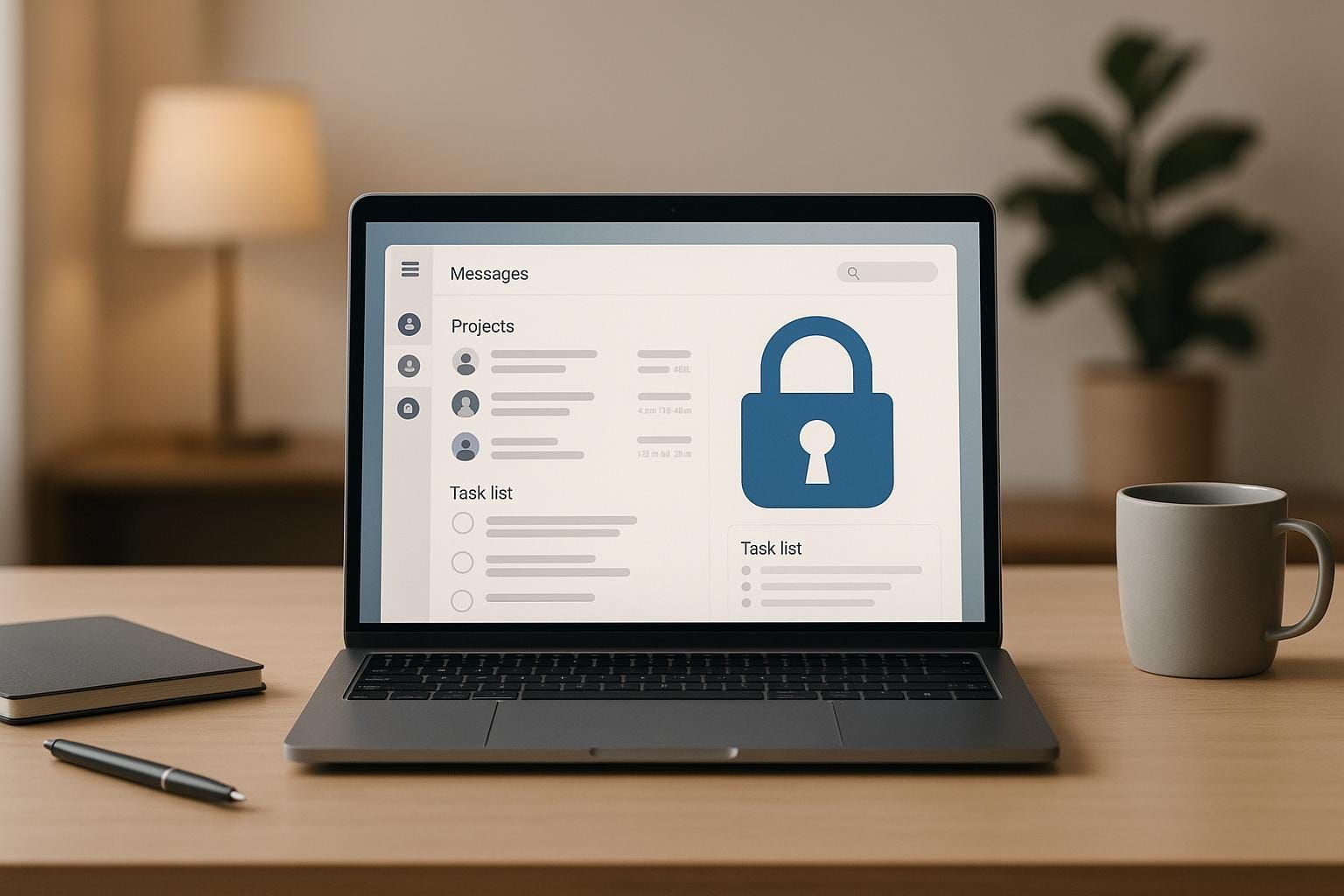
Balancing security and user experience (UX) in collaboration tools is a common challenge. Strong security often adds friction, while a smooth UX can leave systems vulnerable. The key lies in creating tools that protect sensitive data without frustrating users or slowing down workflows. This article outlines practical strategies to achieve this balance, including:
- Core Security Features: Use end-to-end encryption, role-based access controls, and multifactor authentication to safeguard data while reducing user friction.
- User-Friendly Design: Clear interfaces, automated processes, and contextual prompts make security features easier to use.
- Efficient Workflows: Tools like single sign-on (SSO) and permission templates simplify access and minimize disruptions.
- Inclusive Practices: Ensure accessibility for all users with plain language, assistive technology compatibility, and multiple authentication options.
Core Security Requirements for Collaboration Tools
Secure collaboration tools must prioritize features that safeguard data and align with compliance standards. These foundational security measures are essential for any platform, no matter how intuitive its interface might seem.
When these features are properly integrated, they operate quietly in the background, allowing teams to work without interruptions. But when done poorly, they can become obstacles, driving users toward less secure alternatives. Below, we break down the key security elements that should be seamlessly woven into collaboration tools to reduce friction for users.
End-to-End Encryption and Data Privacy
End-to-end encryption ensures that only the intended recipients can access shared messages, files, or other content. Even if data is intercepted during transmission or stored on servers, it remains unreadable without the correct decryption keys.
For collaboration platforms, encryption must cover several areas. Chat messages should be encrypted both during transmission and while stored. File uploads and downloads need encryption that protects documents from the moment they leave a user's device until they arrive at their destination. Voice and video calls require real-time encryption that doesn’t compromise quality or introduce delays.
The best encryption systems work automatically, without requiring users to manage keys or settings. Modern tools handle key generation and distribution in the background, allowing users to stay focused on their tasks.
Data privacy goes beyond encryption. Platforms should have clear data retention policies to automatically delete outdated files and messages based on company guidelines. Geographic data residency options help organizations store sensitive information in specific regions to meet local regulations. Additionally, data anonymization features can remove personal identifiers from analytics and usage reports, protecting individual privacy.
Access Controls and Permission Management
Role-based access control (RBAC) ensures users only interact with data relevant to their roles, while granular permissions allow administrators to fine-tune what actions are permitted within the platform. Instead of granting universal access, RBAC creates a structure where permissions align with organizational hierarchies and project needs.
For example, some users may have read-only access to documents, while others can edit, comment, or share them externally. Time-limited access is another key feature, automatically revoking permissions once a project concludes or when an employee transitions to a new role.
Audit trails provide a detailed log of user activities, such as file downloads, permission changes, and external sharing. These logs are invaluable for compliance audits or security investigations, offering a clear record of who accessed what and when.
Managing external collaborators is equally important. Guest access controls allow clients, contractors, or partners to use the platform temporarily, but with restricted permissions, automatic expiration dates, and limited visibility into internal channels and files.
Multifactor Authentication and Data Loss Prevention
Verifying user identities and preventing data leaks are critical components of secure collaboration. Features like MFA and DLP strike a balance between strong security and a smooth user experience.
Multifactor authentication (MFA) adds an extra layer of identity verification beyond traditional passwords. This typically involves a combination of something users know (password), something they have (a phone or device), and sometimes something they are (biometric data like a fingerprint).
Effective MFA systems offer multiple verification methods, such as push notifications through authenticated apps, SMS codes for backup, or hardware security keys for highly sensitive accounts. Adaptive authentication further enhances security by adjusting requirements based on login behavior and risk factors. For instance, users logging in from familiar devices and locations might bypass extra steps, while unusual attempts trigger stricter checks.
Data Loss Prevention (DLP) tools monitor and manage how sensitive information is shared within and outside the organization. They can identify when users attempt to share confidential documents externally, flag sensitive data, and block unauthorized downloads to personal devices.
DLP systems often include content scanning to detect sensitive information in files and messages using predefined rules or machine learning. When potential leaks are identified, the system can take actions like blocking the activity, requiring additional approval, or alerting security teams while monitoring the event.
Device management adds another layer of control by regulating which devices can access the platform. Full access can be granted to corporate-managed devices, while personal devices might face restrictions. In cases of lost or stolen devices, remote wipe capabilities allow IT teams to erase company data without affecting personal information.
UX Principles for Secure Tools
Blending security with intuitive design is essential for creating tools that protect users without becoming a hassle. When security measures are easy to use and seamlessly fit into daily workflows, people are more likely to follow them instead of finding risky workarounds.
The trick is to make security features feel like a natural extension of the user experience, not a roadblock. This approach eases the mental load on users while still upholding the high standards of protection that organizations require.
Creating Clear Interfaces for Security Features
Security tools need to communicate clearly. Users should always know what actions they're taking and the risks involved. Clear, well-designed warnings can help users recognize and respond to real threats.
Visual clarity plays a huge role here. For example, Microsoft tackled this issue in November 2024 by introducing updated interaction patterns in Microsoft Teams during the Ignite conference. These changes addressed a common problem: subtle or unclear security prompts that allowed attackers to impersonate legitimate Teams communications. The updates included exposing fake users' email addresses to reveal their true identity, making it easier for users to spot phishing attempts and avoid falling victim to credential theft or data breaches.
The redesign focused on making potential threats more visible and warnings easier to understand, empowering users to take action. Alongside this, intuitive security actions - like simplified permission management and password updates - help reduce the mental effort needed for these critical tasks. Regular usability testing of security processes, such as login flows or account recovery steps, can uncover areas where users might struggle or make errors, allowing for continuous improvement.
Once interfaces are clear, the next step is ensuring security features fit smoothly into users' workflows.
Smooth Workflow Integration
Security tools that disrupt daily tasks often end up ignored. The best solutions are those that integrate seamlessly into the tools and processes people already rely on.
Automated background processes are a great example of this. They handle complex security tasks behind the scenes, letting users stay focused on their work. Conveyor, an AI-driven platform for customer trust workflows, illustrates this concept with its Trust Center feature. This tool enables customers to securely access sensitive documents or get AI-generated responses with just one click after signing an NDA. The result? Secure information sharing becomes effortless.
This streamlined process has proven effective, with customers reporting an 83% reduction in the time spent sharing security information. Additionally, context-aware security adjusts protection levels based on user behavior, ensuring safety without unnecessary interruptions. By integrating security into existing tools like project management or communication platforms, users avoid switching between apps, which helps keep essential tasks on track.
Accessibility and User Inclusion
Clear and seamless design is important, but it’s just as crucial to ensure security features are accessible to everyone. Overlooking inclusivity can leave gaps in an organization’s defenses.
Universal design principles ensure that security tools work well with assistive technologies like screen readers or keyboard navigation. This includes features like alternative text, proper color contrast, and multiple ways to authenticate.
Plain language also makes a big difference. Threatdown, an open standard for threat modeling, demonstrates this by using markdown-style bulleted outlines to explain attack vectors. This straightforward approach simplifies a traditionally complex process, making it easier for all team members to understand and use.
Offering multiple authentication options further ensures inclusivity. Some users might prefer biometric logins, while others may rely on hardware keys or SMS codes. Training materials and help documentation should also be written in simple language with clear visuals, helping users understand why security measures are in place and how to follow them.
"Enhance user trust and adoption by making security features intuitive and non-intrusive." - Microsoft Design
The aim is to create security experiences that feel helpful, not restrictive, encouraging users to embrace these tools as a natural part of their daily routines.
Methods for Balancing Security and Usability
Creating a balance between security and usability goes beyond clear interfaces and smooth workflows. It involves strategies that simplify the user experience while maintaining strong protection. Key methods include progressively revealing advanced features, providing timely education, and streamlining setup with role-based templates.
Progressive Disclosure for Advanced Security Options
Progressive disclosure ensures users start with essential security tools and can access more advanced options only when needed. This approach keeps interfaces simple for most users while offering deeper functionality for those who require it.
One effective strategy is designing layered security interfaces. For example, users might initially see basic actions like changing passwords or setting up two-factor authentication. Advanced features, such as API key management or custom permissions, remain accessible but don’t clutter the main interface.
Smart defaults are another key element. By automatically applying secure settings that work for the majority of users, tools reduce the need for manual configuration. Users can then tweak these settings as their needs grow, avoiding overwhelming choices from the start.
Consider adding expandable sections in security settings. These allow users to see only the most common options upfront, with more granular controls available for those who need them. This keeps the interface clean while ensuring advanced users have the flexibility they need.
Timely Education and Context-Based Prompts
Security education is most effective when it’s delivered at the moment users need it. Context-based prompts provide guidance right when users face decisions that could impact security, making the advice more relevant and actionable.
Just-in-time learning connects security tips to specific actions. For instance, if a user is about to share a document externally, a quick prompt can explain the risks and suggest appropriate permission levels. This approach ties education to real-world scenarios, making it easier for users to understand and apply.
Behavioral triggers can identify when users might need extra guidance. For example, if someone frequently uses weak passwords or shares files too broadly, targeted tips can encourage better habits. The key is delivering these prompts at moments when users are likely to be receptive, rather than interrupting them during high-pressure tasks.
Micro-learning modules break down complex security concepts into bite-sized lessons. Instead of lengthy training sessions, users receive brief explanations when they encounter new features or decisions. These small, timely lessons fit naturally into their workflow and make it easier to absorb important information.
Prompts should also emphasize the value of security measures. For example, explaining how two-factor authentication protects against unauthorized access can motivate users to complete the setup process, framing it as a benefit rather than a hurdle.
Role-Based Setup and Permission Templates
Role-based configurations simplify security by using pre-built templates tailored to specific job functions. This reduces errors during setup and ensures users have the right access levels from the start, complementing broader access control strategies.
Permission templates take the guesswork out of configuration. For example, templates for roles like project managers, developers, or contractors provide tested settings that administrators can apply and adjust as needed. This saves time and reduces the risk of granting too much or too little access.
Onboarding workflows can further streamline the process by suggesting role-appropriate security settings for new team members. These configurations align with the user’s responsibilities and minimize manual setup, ensuring consistent practices across the organization.
Dynamic role adjustments make it easy to update permissions as responsibilities change. For instance, if someone is promoted or moves to a new team, their access can be updated using a new template instead of starting from scratch.
Approval workflows add an extra layer of oversight while keeping the process straightforward. Users can request role upgrades rather than specific technical permissions, simplifying the process for both the user and the administrator.
The most effective role-based systems include clear descriptions of each role’s permissions. When users understand their access levels and how to request changes, it reduces confusion and support requests while maintaining strong security boundaries.
Common Problems in Secure UX Design
Even with meticulous planning, certain challenges often arise in designing secure collaboration tools. A frequent issue is that prioritizing security can sometimes come at the expense of usability. Additionally, security measures are often presented in ways that confuse users, leading to frustration or even risky workarounds. Understanding these common pitfalls is key to creating solutions that strike the right balance. Below, we explore some of the most pressing challenges and potential ways to address them.
Reducing Problems from Repeated Authentication
Repeated authentication requests can disrupt workflows and reduce productivity, especially for users who switch between multiple applications throughout the day.
One effective solution is single sign-on (SSO), which allows users to log in once and gain access to multiple applications. When integrated smoothly, SSO minimizes interruptions and fits naturally into daily workflows.
Another option is biometric authentication - methods like fingerprint scanning, facial recognition, or voice verification. These technologies not only enhance security but also make the login process quicker and easier by reducing reliance on passwords.
Adaptive authentication takes this a step further by tailoring security requirements based on context. For instance, users logging in from familiar devices and locations might face fewer authentication hurdles, while those accessing from new environments may encounter stricter checks. Additionally, intelligent session management can maintain active sessions based on user activity and risk levels, cutting down on repetitive prompts without compromising security.
Making Permissions and Access Controls Clear
Once users are authenticated, managing permissions and access levels often becomes the next hurdle. Many struggle to understand their access rights within collaboration tools, which can lead to frustration or risky behavior when they attempt workarounds.
Visual indicators like color-coded badges or icons can simplify this process by quickly showing users their access levels. These visual cues are usually easier to interpret than lengthy text explanations.
Permission previews are another helpful feature. By offering a detailed breakdown of what roles like "editor" or "viewer" actually allow, users can make more informed decisions when sharing sensitive information.
To further reduce confusion, tools should include clear escalation paths. For instance, built-in request forms or direct links to support can guide users on how to request additional access when needed.
Finally, visualizing permission inheritance - such as showing how access flows from a parent folder to subfolders or from teams to individual projects - can help users better understand how permissions are structured. Real-time error messages that explain why access is blocked and recommend next steps can also improve clarity.
Balancing Security Features and Usability
These challenges highlight the importance of integrating security features in ways that feel natural to the user. Security measures that are intuitive and clearly beneficial are more likely to be embraced. On the other hand, features that disrupt workflows may require additional user education and thoughtful implementation to ensure they are effective. Striking this balance is crucial for the success of any secure collaboration tool.
Conclusion: Combining Security and UX Effectively
Bringing security and user experience (UX) together requires a thoughtful approach where security features blend naturally into the user interface. When done well, users adopt these features effortlessly, as they feel like a natural part of the experience. The best collaboration tools treat security as an unseen backbone - always present, but never intrusive.
The friction users often feel with security measures usually stems from poor design rather than the features themselves. For example, using clear visual indicators for permissions and straightforward escalation paths can guide users without overwhelming them with unnecessary technical jargon.
To excel in secure UX design, constant learning and improvement are essential.
Using DeveloperUX for Additional Learning

For designers and developers looking to refine their skills, DeveloperUX offers a Master Course on UX. This platform dives into critical topics like designing internal tools and understanding how AI continues to shape user experiences. These lessons are particularly relevant when building modern collaboration tools.
The course also covers specialized areas like typography and user interaction principles. These foundational skills are invaluable when designing interfaces for security-critical features like permission systems and authentication flows. By mastering these principles, you can create security measures that feel intuitive and accessible.
Key Points for Designers and Developers
Striking the right balance between security and UX boils down to a few key practices. For instance, progressive disclosure and context-based prompts allow users to engage with advanced security options only when necessary. Similarly, role-based templates simplify complex permission systems into easy-to-understand categories.
Every interaction involving security is an opportunity to build trust - or damage it. When security measures feel helpful rather than obstructive, users are more likely to see themselves as active participants in maintaining security. The goal is to align security features with users' natural workflows, making them feel seamless and intuitive.
The best collaboration tools make security so well-integrated that users hardly notice it. Achieving this level of integration requires careful planning, rigorous user testing, and a commitment to iterating based on real-world feedback. When done right, security becomes more than a necessity - it becomes a competitive edge.
FAQs
How can collaboration tools use end-to-end encryption without making them harder to use?
End-to-end encryption (E2EE) can be integrated into collaboration tools without making things harder for users by utilizing transparent encryption protocols. These protocols work quietly in the background, ensuring data is encrypted during transmission automatically - no extra steps required from the user.
To make things even smoother, tools can adopt a zero-trust architecture paired with user-friendly security features like automatic key management or one-click authentication. This way, data stays protected, and the interface remains straightforward, offering strong security without sacrificing simplicity.
What are the best ways to manage permissions and access controls while keeping the user experience simple and clear?
To manage permissions and access controls effectively while keeping the user experience seamless, start by aligning access rights with specific user roles. Stick to the principle of least privilege, which ensures users only get the access they need - nothing more, nothing less. Regular reviews and updates of access levels are essential to maintain both security and clarity.
Make the process of managing permissions straightforward by designing an intuitive interface. Avoid bombarding users with too many options or requests. Clearly communicate why certain permissions are needed - this builds trust and helps users feel more comfortable with their decisions. By combining these approaches, you can strike a balance between strong security measures and a user-friendly experience.
How can progressive disclosure simplify security features without overwhelming users?
Progressive disclosure streamlines security features by showing only the most important options initially, while advanced settings remain tucked away until needed. This method helps users stay focused on their main tasks without feeling bogged down by extra complexity.
By placing advanced security settings behind secondary screens or actions, those who require more detailed options can access them easily, without overwhelming users who don’t. This approach strikes a balance between usability and strong security, creating a smoother and more intuitive experience for everyone.