
What Is Screen Reader Usability Testing?
Checks whether screen reader users can finish real tasks by tracking task success, focus, spoken output, and errors scans miss.

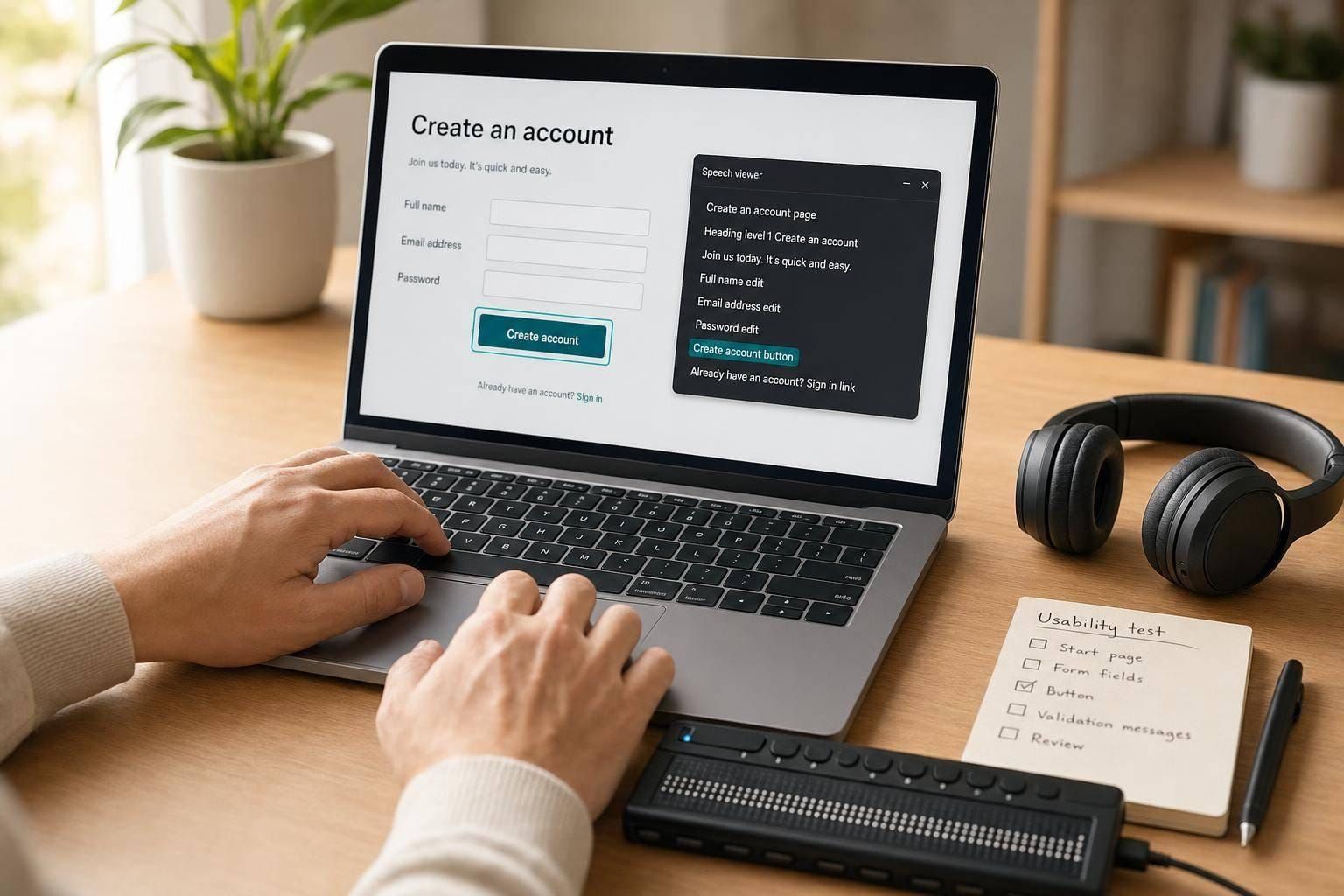
Screen reader usability testing answers one question fast: can a blind or low-vision user finish key tasks with a screen reader? If the answer is no, passing checks and scans won’t fix the problem by itself.
I’d sum it up like this: screen reader usability testing looks at task success, time on task, errors, focus behavior, and what gets announced out loud. It shows where users get lost in forms, menus, modals, search, and checkout flows. It also fills gaps left by conformance reviews and automated tools, which many sources say catch only about 30% to 40% of WCAG issues.
Here’s the short version:
- It tests actual use, not just rules
- It focuses on screen reader output, labels, headings, and focus
- It helps spot issues like silent updates, vague buttons, and broken forms
- It often covers high-impact flows like sign-in, account creation, search, and checkout
- It should record exact steps, device, browser, screen reader, and spoken output
A few numbers stand out:
- About 71.6% of screen reader users say headings are their main way to move through pages
- More than 91% of assistive tech users report using a screen reader on mobile
- Blind users took 5x longer on low-accessibility sites in one cited study when workaround costs were included
Put simply: a page can meet many requirements and still be hard to use. That’s why I’d treat screen reader usability testing as a task-based check on whether the experience works from start to finish.
What screen reader usability testing is
Screen reader usability testing checks whether people who use screen readers can finish real tasks inside a digital product. It looks at task success, speed, clarity, and confidence. That’s the line between basic technical support and actual usability in day-to-day use.
For example, a team might ask participants to update a shipping address or finish a purchase, then watch how they move through the experience and listen to what the screen reader announces. The point is simple: find where people get stuck, what throws them off, and whether they stay oriented and in control.
How it differs from accessibility testing
That matters, but it is not the same as usability. Accessibility testing, whether based on WCAG 2.1 or Section 508 in the U.S., checks conformance against set requirements. But conformance alone does not show whether the experience works well for actual users.
A product can pass many conformance checks and still be hard to use. Headings may be present but arranged in a way that feels out of order. Form fields may have labels, but the way those labels are announced can still be confusing. Conformance tells you what exists; usability testing shows whether those parts work in practice.
How it differs from automated scans
Automated tools are good at finding code-level issues fast, like missing alt text, wrong ARIA roles, and color contrast failures. But they miss a lot of what screen reader users deal with. Multiple sources estimate that automated accessibility tools detect only about 30% to 40% of WCAG issues, and one source notes that only about 23% of screen reader compatibility issues can be caught through automated testing alone.
A lot of the remaining issues - confusing reading order, weak heading hierarchy, unclear announcements for dynamic content, and broken task flows - need a real person using a real screen reader. An automated scan can’t tell whether a form error message makes sense when read aloud or whether a modal dialog announces itself at the right time. That’s where usability testing does the heavy lifting.
Why screen reader usability testing matters
Problems it helps identify
These issues matter because they can block people from finishing key tasks. Screen reader usability testing brings the same pattern of problems to the surface across many products.
Common issues include:
- Interactive elements that act in unexpected ways
- Links or buttons that don't make sense
- Dynamic content that changes without any announcement
- Forms with unclear labels, error messages, or focus behavior
In practice, that might look like a form field announced as edit, blank instead of Email address, edit, a modal that traps keyboard focus, or a cart total that changes on screen but is never announced.
Broken focus management, vague link text, and silent dynamic updates show up a lot. And when you can't see the screen to figure out what changed, those issues can be deeply disorienting.
What these issues mean for real tasks
These aren't small annoyances. They can stop people from finishing important tasks.
A blind user who can't tell which form field has an error during sign-up may submit the form again and again, then give up. A checkout flow with unclear feedback after selecting Add to cart can leave users wondering if the action worked at all.
Research found that blind users spent more than 5 times longer completing tasks on low-accessibility websites than on high-accessibility ones, once the full cost of workarounds - like calling customer support - was factored in.
How it strengthens broader UX practice
Screen reader findings often point to bigger UX problems. If users struggle to move through a page because headings are missing or inconsistent, that's an information architecture issue. Sighted users may feel that problem too, even if it's less obvious.
The same thing happens with forms. When labels and error messages work well for non-visual users, they're often easier for everyone to understand. Better focus management also helps keyboard-only users, power users, and people with motor impairments.
Predictable dialogs, clear labels, and meaningful announcements are just solid UX basics. Screen reader testing puts information architecture, content structure, and interaction design under pressure. That's why it belongs in both accessibility work and QA.
sbb-itb-124fdbf
How screen reader usability testing works in practice
What teams usually test
Once the basics are in place, testing shifts to the tasks people need to finish. Teams usually focus on account creation and sign-in, main navigation, site search, form submission, and checkout. These are the flows where a problem doesn’t just annoy someone. It can stop them cold.
A common test follows a user from product browsing all the way to checkout, including filters, forms, and confirmation feedback. To show where screen reader issues hurt usability, teams track task success, completion time, and error rate.
The next step is picking the device and screen reader mix that matches those tasks.
Tools and setups commonly used
Sessions use the screen readers people depend on most. On desktop, teams test the screen reader and browser pairings their audience uses most, such as NVDA, JAWS, and VoiceOver. That usually means covering the main desktop, mobile, and browser combinations your users rely on.
On mobile, VoiceOver on iOS and TalkBack on Android matter a lot. More than 91% of respondents who rely on assistive technology report using a screen reader on mobile.
The setup stays simple on purpose. Desktop sessions use keyboard-only navigation, including:
- Tab
- Shift+Tab
- Arrow keys
- Screen reader shortcuts
Mobile sessions depend on swipe gestures and double-tap activation. The point is to hear exactly what the screen reader announces and watch how the user moves through the interface without sighted cues.
After the session, the team turns those notes into findings other people can repeat and check.
How findings are observed and recorded
Teams note the exact spoken output at each step. If an error appears on screen but is not announced, they record the exact message, the device and browser, and the steps that triggered it. They also log the exact announcement, version, device, browser, and action sequence.
They don’t stop at spoken output. Teams also document behavior that signals friction, like hesitation, repeated keypresses, backtracking, and moments when a user says they can’t tell where focus is. If an action is blocked, that issue should be tied to the task it prevents.
JAWS + Chrome, Windows: Participant unable to find final Place order button; focus never reaches element; checkout task failed.
That kind of note gives QA and developers enough detail to reproduce the issue and verify the fix.
How it fits into accessibility and QA work
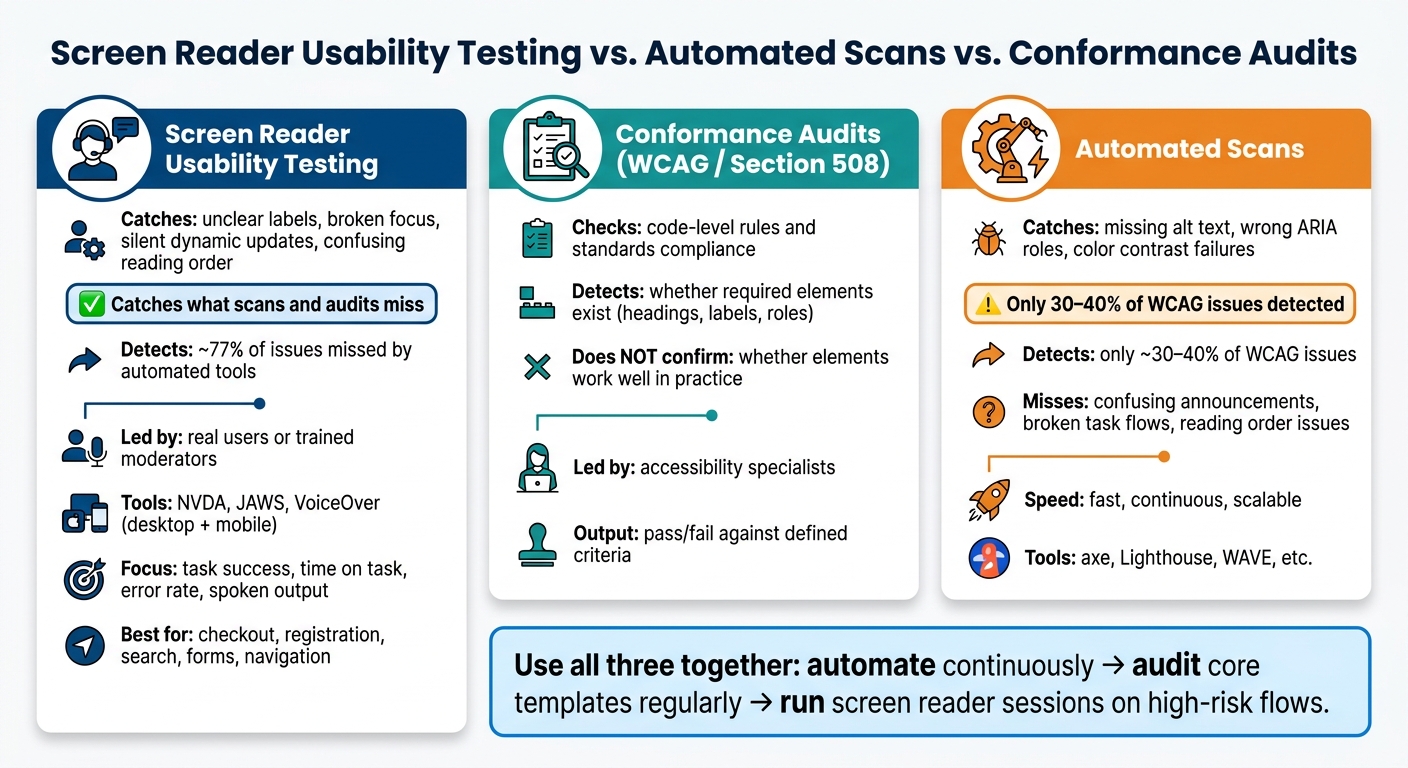
Screen Reader Testing vs. Automated Scans vs. Conformance Audits
Where it overlaps and where it stands apart
Once findings are recorded, the next step is figuring out where screen reader testing belongs in QA.
Screen reader usability testing works alongside manual audits. Audits can spot code-level issues. Screen reader testing shows how labels, focus, and live regions behave during actual tasks. It's task-based, and it's led by real users or trained moderators using screen readers like NVDA, JAWS, and VoiceOver.
That matters because a control can look fine in an audit but still feel confusing when someone tries to use it. Screen reader testing is especially helpful for checking whether a label is clear in context and whether error or status updates are clear enough to keep a task moving.
Automated scans and audits find technical issues; screen reader testing shows whether the experience makes sense in context.
That difference affects how teams use it day to day. In QA, it helps to:
- run automated scans continuously
- audit core templates on a regular schedule
- add screen reader sessions for high-risk flows such as checkout, registration, and dashboards
Conclusion: Key points to remember
Screen reader usability testing measures real task success, not just code compliance. It surfaces issues that scans and audits miss, especially unclear labels, missed announcements, and broken focus. Use it on critical flows, and record the exact steps, announcements, device, and browser.
FAQs
Who should take part in screen reader usability testing?
Screen reader usability testing should start with users with disabilities. They’re the ones most likely to spot navigation issues and access problems that automated audits often miss.
It also helps to bring in a cross-functional team. That usually means designers, developers, and QA specialists working together so issues can be found, understood, and fixed from different angles.
When possible, external disability consultants can add expert guidance and help teams catch gaps that might otherwise slip by.
When should teams run screen reader usability tests?
Teams should run screen reader usability testing throughout the development lifecycle, not just at the end. Test each new feature before launch, and treat critical accessibility issues as release blockers.
Do manual reviews quarterly or after major UI updates. If the site changes often, test monthly. If it’s mostly static, audit it every 4 to 6 months. Pair manual testing with automated audits in every build.
How many users are enough for testing?
There’s no set number of participants for screen reader usability testing.
What matters is adding real user testing alongside automated tools. Automated checks can catch some issues, but they often miss many accessibility barriers.
The main focus should be on watching how people use assistive technologies in practice, especially during critical user flows and across different device and software combinations. That’s where things often break in ways a technical audit won’t spot.
Feedback from actual users can reveal usability issues that technical audits alone can miss.