
ADA Audit Report Examples for Product and Dev Teams
ADA audit report examples: executive summaries, bug-ready tickets, and spreadsheets with owners, priorities, and retest plans.

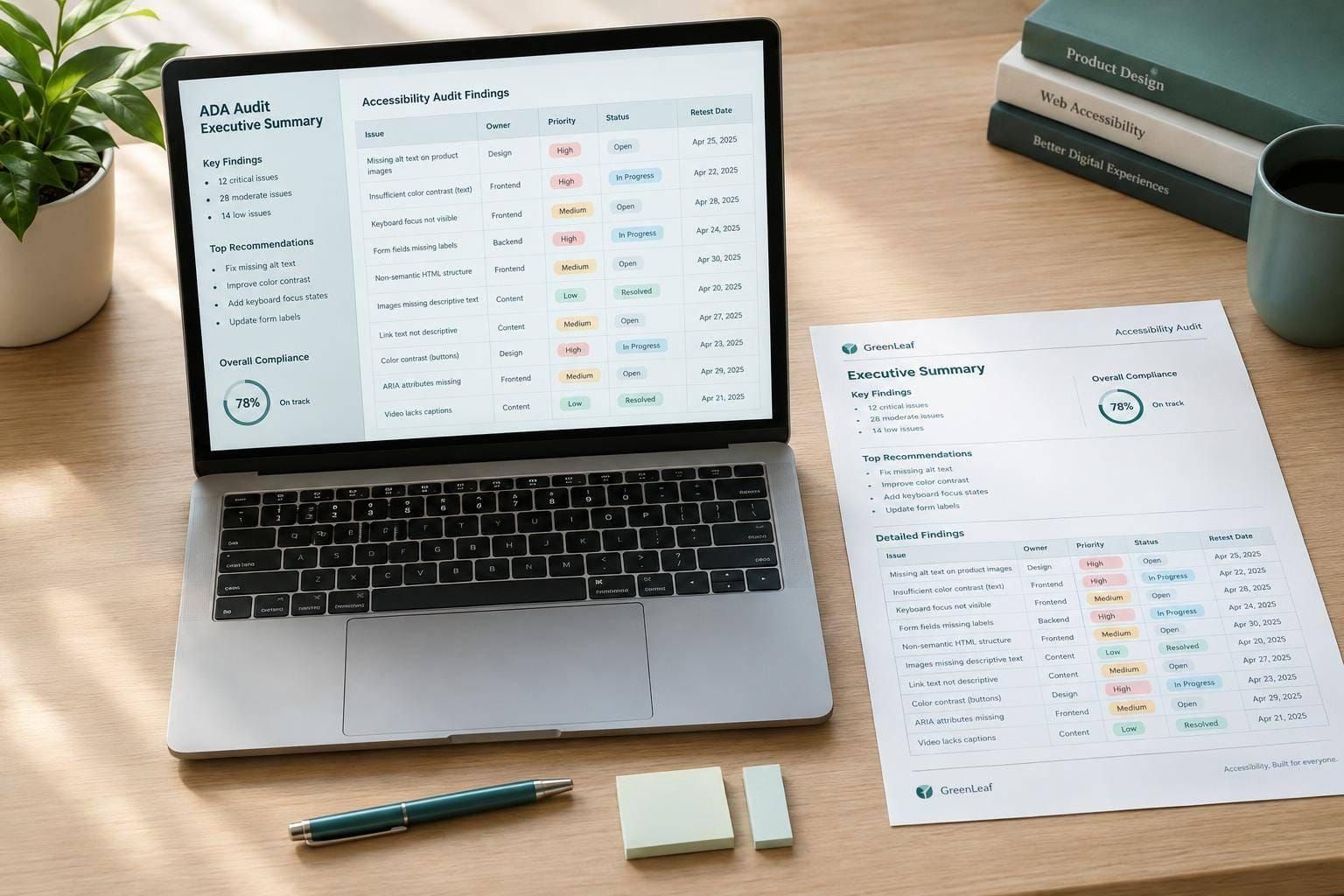
I recommend starting with an executive summary linked to findings that name an owner, a fix priority, and a retest plan. Use one finding ID across all views so your team tracks the same defect - not separate copies.
I use these 4 report formats for different needs:
- Short executive report: Helps leaders review user impact, release risks, and next steps.
- Bug-based report: Gives developers reproduction steps, repair guidance, and acceptance criteria.
- Board view: Tracks assignments, delivery status, and release blockers.
- Spreadsheet: Keeps the finding inventory, test coverage, and review history together.
Quick Comparison
| Format | Best audience | Detail | Main trade-off |
|---|---|---|---|
| Executive report | Leaders and release managers | Low–medium | Fast to review; fewer technical details |
| Bug-based report | Developers, designers, and QA | High | Ready for fixes; context can spread across tickets |
| Board view | Delivery teams | Medium | Shows progress; needs regular updates |
| Spreadsheet | Auditors and program managers | Medium–high | Supports filtering; risks duplicate or stale records |
Before handing off any format, I document what was tested, how it was tested, and what remains untested. I keep defect counts separate from affected-page counts, label invented examples “Hypothetical example,” and require retest results before closure.
<u>A report does not certify ADA compliance.</u> It should help your team fix tested barriers without turning limited WCAG results into a legal conclusion.
Short Executive Report Example
Summarize Findings and Release Risks
Hypothetical example: Riverbend Supply Co. - small-business checkout audit. Evaluated March 12–14, 2025. Target: WCAG 2.2 Level AA. Scope: guest checkout from cart through customer information, shipping, payment, order confirmation, and validation messages. Methods: automated scans, keyboard-only testing, screen-reader review, and manual WCAG inspection. Scope is limited to the tested checkout flows, states, content, browsers, assistive technologies, and test date.
Hypothetical results: Of 18 evaluated checkout requirements in the stated scope, 11 passed, 5 produced findings, and 2 were not applicable. Severity count: Critical 0; High 1; Moderate 3; Low 2. One failed requirement can produce multiple defects; keep requirement counts separate from defect counts and avoid an overall accessibility percentage.
Release risk: High. Hold release pending verification of the keyboard blocker. The address-validation dialog prevents keyboard users from completing checkout. Reserve engineering capacity for modal focus management, form-label and error-message associations, keyboard-visible focus, and consistent component behavior. Dependencies: the design-system modal component and payment-provider iframe limits. Target dates: owner assignment March 15, 2025; implementation March 22, 2025; engineering verification March 25, 2025; QA retest March 27, 2025; next review April 3, 2025. Planning targets only. Use the summary table to trace each risk to an owner and detailed record.
Link Summary Rows to Detailed Findings
The executive table should make two things clear: who acts next and which release is affected. In this hypothetical example, P0 means a core task is blocked without a practical workaround. P1 means serious impairment with a possible workaround. These labels set the schedule; they aren't WCAG levels.
Severity describes user impact. Priority sets the order of fixes. Release risk also accounts for exposure, dependencies, and confidence in verification.
Each summary row below points to its detailed finding record.
Hypothetical example - summary rows
Finding ID Priority Affected workflow User impact Owner Target release Detailed record CHK-001 P0: release blocker Guest checkout: address validation Keyboard users cannot reach or dismiss the dialog, preventing checkout completion Checkout engineering April 2025 CHK-001 CHK-002 P1: high Payment form error recovery Screen-reader users may not be told which field requires correction Design systems + checkout engineering May 2025 CHK-002
Hypothetical detailed record linked from CHK-001: Requirement: WCAG 2.1.1 Keyboard, with related review of focus behavior and focus visibility. Build: 2025.03.10. Environment: Windows 11, Chrome, keyboard-only. Steps to reproduce: Open checkout; enter an invalid address; submit the form; press Tab and Shift+Tab; attempt to reach the dialog’s close and correction controls. Expected result: Keyboard users can reach, understand, operate, and exit the dialog, then return to the relevant form field. Actual result: Focus remains behind the dialog or cycles among unavailable controls, preventing completion. Evidence: screenshot, short recording, accessibility-tree capture, and test notes. Implementation notes: move focus into the dialog on open, trap focus while it is open, return focus on close, and associate the invalid field and message programmatically. Verification: repeat the same keyboard path and test with the agreed assistive-technology matrix.
sbb-itb-124fdbf
Bug-Based Report Example
Use this format when teams need ticket-ready findings with reproduction steps, ownership, and retest criteria. It turns a summary finding into an engineering ticket.
Record Bug Details and Reproduction Steps
Give each defect a stable ID and a title that describes its behavior. Record the URL, page location, shared component, environment, detection method, affected users, evidence, WCAG criterion and level, owner, status, severity, priority, target release, and repair links. Keep observed behavior separate from the recommended fix.
Hypothetical defect: CHECKOUT-A11Y-014 - Checkout confirmation dialog lets focus move behind the modal. Location: checkout page, “Place order” confirmation dialog. Environment: Chrome 122 on Windows 11; NVDA 2024.1; keyboard-only testing. Reproduce: complete required checkout fields → activate “Place order” → press Tab and Shift+Tab → dismiss with Escape or “Cancel.” Actual: focus stays on “Place order” or moves behind the modal; dismissal does not reliably restore focus. Expected: focus enters the dialog, stays within it, and returns to the trigger after cancellation. Impact: keyboard and screen-reader users may miss the dialog or interact with unavailable background content. Attach a recording and accessibility-tree snapshot. Recommended fix: implement accessible name, modal behavior, focus entry, containment, and return using the WAI-ARIA dialog pattern.
Map this focus-order failure to WCAG 2.4.3 Focus Order, Level A. Add 2.1.1 Keyboard, Level A, only if testing confirms that keyboard operation fails. Add 2.4.7 Focus Visible, Level AA, only if the focus indicator isn't visible.
Record exact tool versions, starting state, viewport, and whether the issue occurs consistently so QA can repeat the test. The pattern link is a reference - not proof.
Separate Severity from Fix Priority
Dimension Severity Remediation priority Definition How seriously the barrier affects users When the team should fix it Decision factors Task blockage, affected users, and practical workarounds Affected scope, shared-component reach, release dependencies, and effort Hypothetical checkout example High: users cannot reliably reach or dismiss the confirmation dialog P1: the dialog appears in every checkout flow and blocks confirmation for some users
Use severity to describe user impact and priority to set fix order. Follow your team's documented priority scale. A shared component's reach can increase urgency without changing the observed severity. A dependable workaround may change the schedule, but it doesn't remove the barrier. Engineering priority is a delivery decision, not a legal determination.
Set Acceptance Criteria and Verify Fixes
Define results testers can observe: the dialog exposes its role, modal state, and accessible name; focus enters when it opens; Tab and Shift+Tab stay inside; controls work by keyboard with visible focus; and cancellation returns focus to “Place order.”
Before closing the ticket, record the tester, date, environment, method, result, and evidence. Repeat the original steps, then check Escape, cancellation, focus return, and screen-reader announcements. Reopen failed fixes with new evidence.
Board and Spreadsheet Report Examples
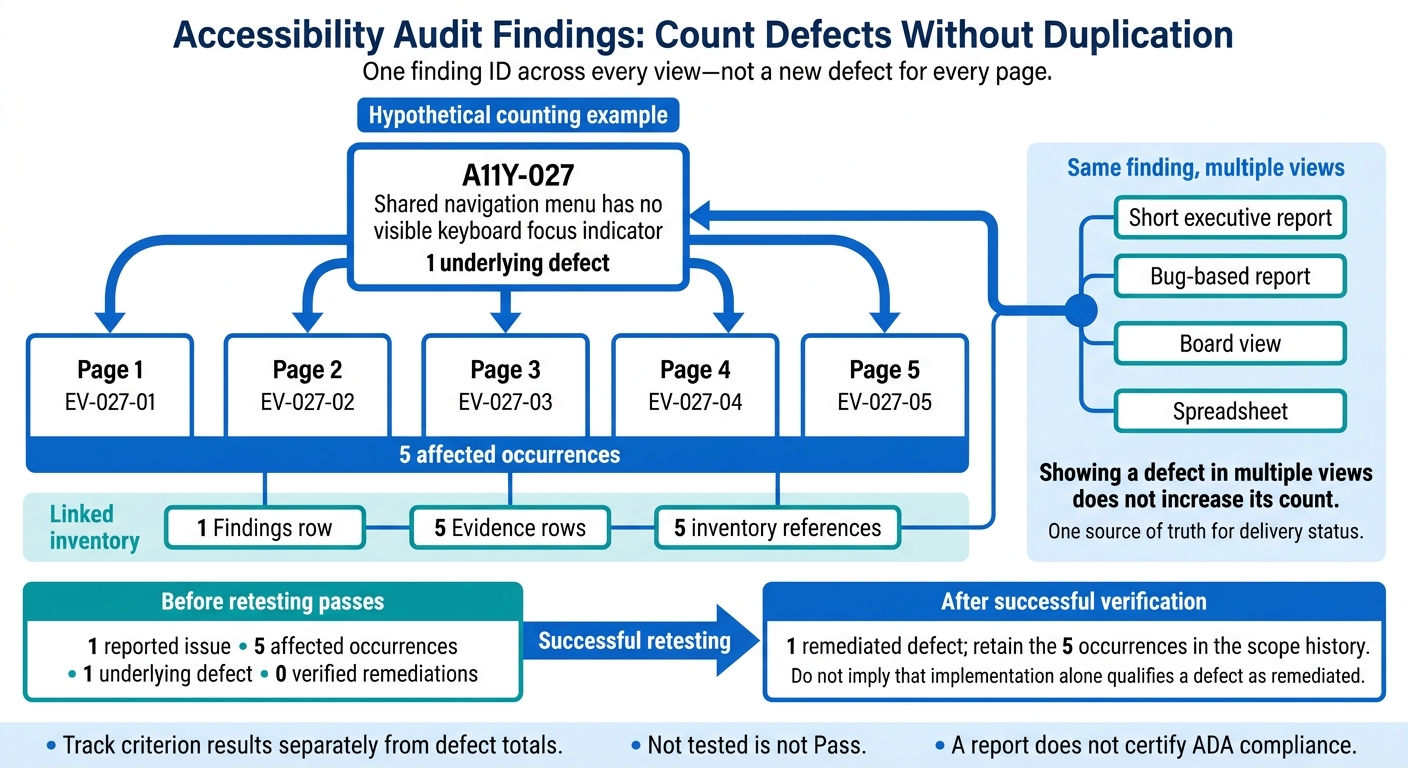
Accessibility Audit Findings: Count Defects Without Duplication
When teams need rollout visibility and a master inventory, present the same findings in board and spreadsheet views.
Set Up Board Columns and Issue Fields
Use the board to track remediation and the spreadsheet to retain scope and evidence. Set up columns that support triage, assignment, and verification: New → Needs triage → Ready for design or implementation (leveraging design system resources for consistency) → In progress → Ready for accessibility verification → Verified. Keep Deferred with rationale as a separate status.
Each card needs a finding ID, product area, affected page or flow, affected user group, WCAG success criterion and level, severity, priority, owner, target release, evidence link, verification result, and regression risk.
Create a Release blockers view for unresolved P0 or P1 findings tied to the target release. Add a Checkout flow view filtered by product area or flow tag. Group shared-component problems under one parent defect, while keeping links to every affected occurrence. Deferred cards need a rationale, risk owner, and review date - not just a different column.
Define Spreadsheet Worksheets and Owners
Use the board for active work and the spreadsheet for reporting and history.
Link worksheets by finding ID. Add dropdowns for status, priority, severity, WCAG level (A, AA, AAA), and verification outcome (Pass, Fail, Needs review, Not tested, Not applicable). Match status names across both tools and keep one source of truth for delivery status.
| Worksheet | Purpose | Update timing | Primary owner |
|---|---|---|---|
| Summary | Counts by status, severity, priority, product area, and WCAG level, plus key risks and the release recommendation | At kickoff and after each reporting cycle | Accessibility lead |
| Findings | One row per underlying defect with finding ID, criterion, impact, severity, priority, owner, status, and release | During audit and triage | Auditor or accessibility lead |
| Page or flow inventory | Tested pages, templates, screens, journeys, environments, and test coverage | Before testing and when scope changes | Product or QA lead |
| WCAG mapping | Criteria tested, applicable criteria, results, rationale, and exceptions | During analysis and retesting | Accessibility specialist |
| Evidence | URLs, screenshots, recordings, DOM references, assistive technology, browser, steps, and dates | At discovery and retesting | Auditor or QA tester |
| Remediation tracker | Actions, dependencies, design or code links, target dates, verification status, and regression risk | During implementation through closure | Engineering or product owner |
| Change log | Scope changes, status changes, retest decisions, deferred items, and approval history | Every material change | Report owner |
Hypothetical Findings row:
A11Y-024| SharedGlobalNavcomponent: keyboard focus is not visible | WCAG 2.4.7 Focus Visible, AA | 12 affected pages | P1 | Ready for accessibility verification | Issue:WEB-4812| Evidence:A11Y-024-before-after| Verification: Not tested.
Count Findings Without Double-Counting Defects
Showing a defect in multiple views does not increase its count. Keep defect totals separate from the number of affected occurrences.
Hypothetical counting example:
A11Y-027, “Shared navigation menu has no visible keyboard focus indicator,” appears on five pages. Keep one Findings row, five Evidence rows (EV-027-01throughEV-027-05), and five inventory references. Report one reported issue, five affected occurrences, one underlying defect, and zero verified remediations until retesting passes. After successful verification, count one remediated defect; retain the five occurrences in the scope history.
Track criterion results separately from defect totals: Not tested is not Pass. Record the reason for each coverage gap and who owns the decision. Document why any criterion is not applicable, and keep prior results and status changes in the change log. These records prevent sampled coverage from looking like a full-product evaluation and preserve an audit history others can reproduce.
Conclusion: Choose Formats and Check Report Quality
Match Formats to Team Needs
Choose formats that help product and engineering teams receive findings, act on them, and verify fixes. Start with a small set: an executive summary linked to a prioritized findings list. Add boards or spreadsheets only when needed for coordination or inventory tracking.
Use the simplest format that gives the team a clear owner, fix order, and retest path.
| Team need | Useful format | Maintenance responsibility |
|---|---|---|
| Small team making iterative fixes | Executive summary linked to actionable findings | Lead designer or developer updates the findings list and release status |
| Cross-functional remediation | Kanban board linked to findings for assignment and status tracking | Project manager or Scrum master maintains assignments and delivery status |
| Larger inventories or formal handoffs | Spreadsheet for inventory and handoff tracking | QA or accessibility lead maintains coverage and handoff records |
Keep finding IDs consistent across formats and sync status from one source of truth. Another view shouldn't mean another defect record or another status to maintain.
Check the Report Before Handoff
Before handoff, read the report from the recipient's perspective. Can they understand the scope, act on findings, and verify closure?
- [ ] Scope: Reviewed build, key flows, WCAG AA target, and review date.
- [ ] Methods: Automated scans, keyboard testing, and assistive technologies used.
- [ ] Actionable findings: Reproduction steps, evidence, user impact, severity, repair guidance, and assigned owner.
- [ ] Verification: Acceptance criteria and retest evidence before closure.
- [ ] Limits: Exclusions, coverage gaps, and unresolved questions.
Use clear dates, such as November 11, 2026. State what was tested and what remains unknown. Don't turn limited WCAG findings into a blanket ADA compliance claim. Check that the handoff provides one source of truth, one fix path, and one verification path.
FAQs
How do I choose a representative audit sample?
Test high-priority user journeys, critical tasks, and complex interactive states - not just default page views. Focus on logging in, submitting forms, and completing purchases. Include a mix of components, templates, and interactive elements, such as modals, menus, and dynamic content.
Test on both mobile and desktop, using browser and screen reader combinations that match what your users use. Assess how each issue affects these tasks to pinpoint the biggest barriers.
When should I retest after a shared-component fix?
Retest immediately after applying the fix to confirm the accessibility barrier is gone and no new issues have appeared. Test every implementation of the shared component with automated scans and manual checks, including keyboard navigation and screen reader testing.
Check that behavior, states, and focus management stay consistent and accessible. Mark the fix as resolved only after the task passes regression testing.
How do I report third-party accessibility barriers?
Treat third-party accessibility barriers as release defects, not minor warnings. Log each defect in your project management system with a descriptive title, the component, the affected user journey, relevant WCAG success criteria, steps to reproduce the issue, and evidence such as screenshots or video.
Record the device model, operating system, and assistive technology used. Assign a severity level - Critical, High, Medium, or Low - to help prioritize fixes, then confirm the fix with manual retesting.