
Why Automated WCAG Testing Misses Issues
Automated WCAG scans miss context, form and modal failures; pair scans with manual review, assistive-technology checks, and user testing.

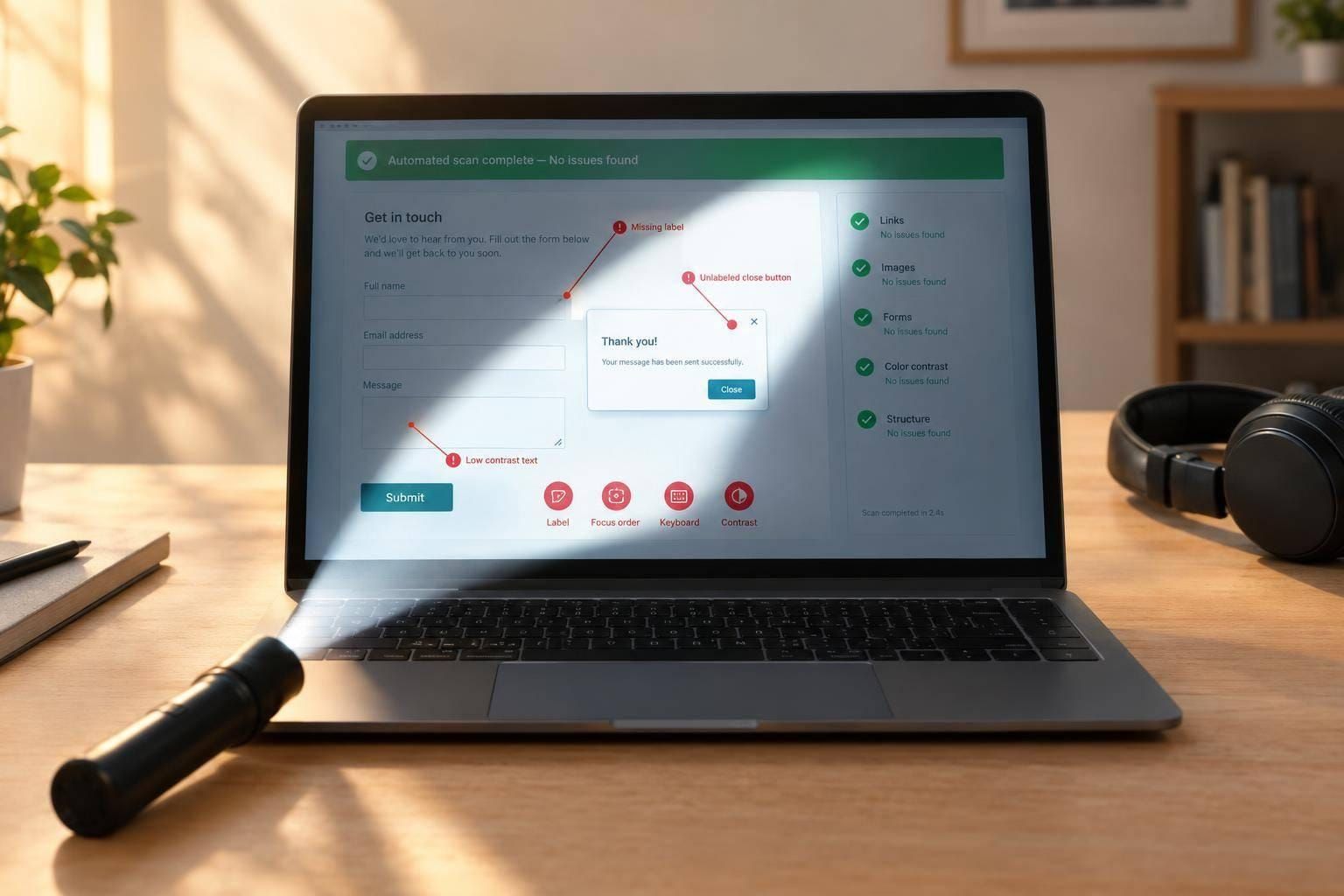
I don’t treat a passing WCAG scan as proof that a site is accessible. Before release, I also test whether someone can book an appointment, fix a form error, or close a dialog using a keyboard and assistive technology.
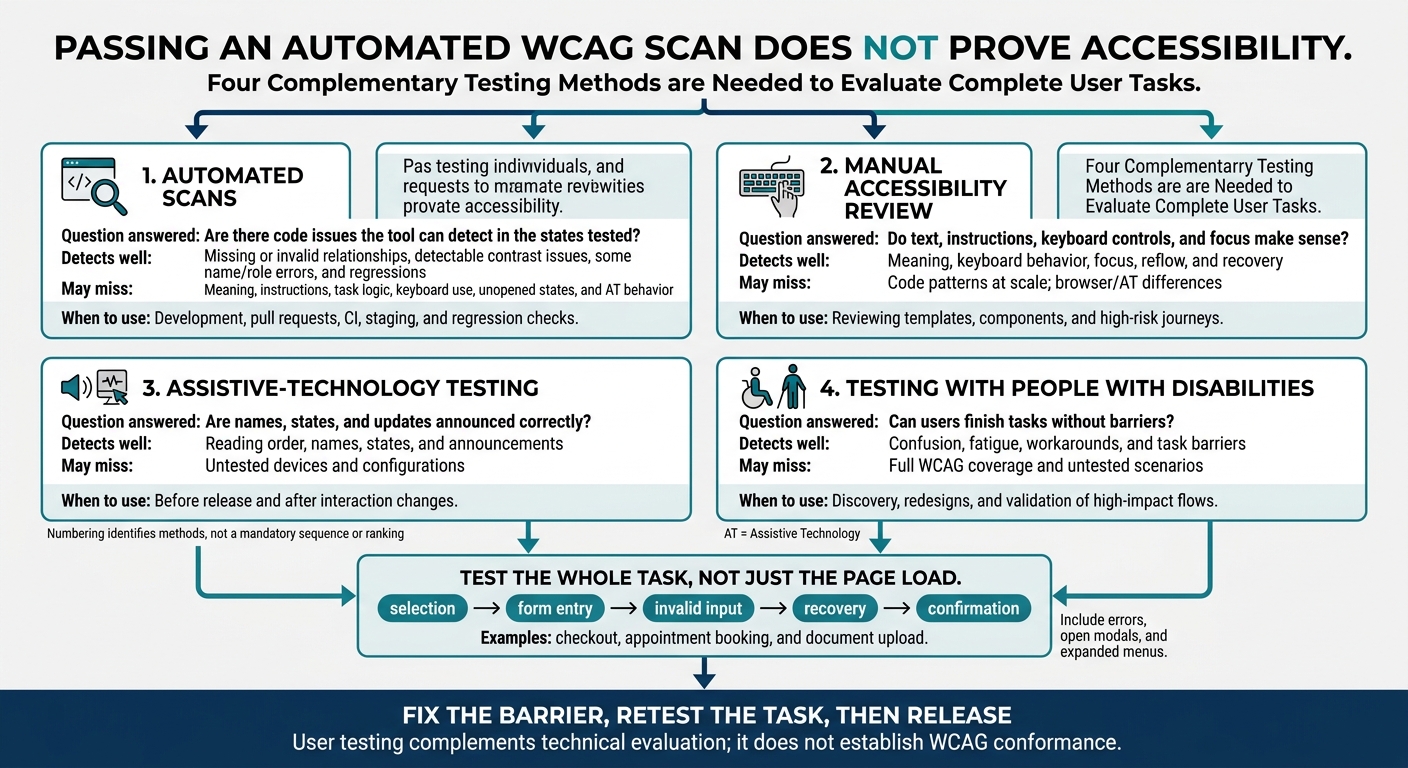
I use 4 testing methods because each answers a different question:
- Automated scans: Are there code issues the tool can detect in the states tested?
- Manual review: Do text, instructions, keyboard controls, and focus make sense?
- Assistive-technology testing: Are names, states, and updates announced correctly?
- Testing with people with disabilities: Can users finish tasks without barriers?
My rule: <u>test the whole task, not just the page load</u>. That includes errors, open modals, and expanded menus. Then I fix the barriers and retest - because clearing a warning isn’t the same as solving the problem.
Why WCAG Scans Need Human Testing
Why Automation Misses Context and Meaning
Automation can check whether a task is complete, but it can’t always tell whether content makes sense to users. It can verify that an alt attribute exists. Human review is still needed to judge whether that text matches the image’s purpose under WCAG 1.1.1.
Check Alt Text, Labels, and Link Purpose
alt="image"does not explain a clinic-location map to someone trying to reach an appointment;alt=""is correct for decorative content. A field labeled “Enter” leaves patients guessing; “Insurance member ID” identifies its purpose.
Under WCAG 2.4.4, link purpose can come from the link text together with programmatically determined context.
Repeated “Read more” links are acceptable only when programmatic context makes each destination clear; visual proximity alone is not enough.
Forms have the same gap: automation checks structure, but it can’t reliably judge whether users know what to enter.
Check Instructions and Input Requirements
Give users instructions before they submit, and mark required fields without relying on color or unexplained symbols.
An appointment form should state the expected date format, such as “MM/DD/YYYY,” scheduling restrictions, accepted upload file types, maximum size, and whether multiple files are allowed - before patients encounter an error.
Place field guidance next to the control and use aria-describedby when needed. Group related radio buttons with <fieldset> and <legend>, then check what screen readers announce.
Next, check how controls behave.
sbb-itb-124fdbf
Where Forms, Modals, and Menus Fail
Scan different states, not just the initial page. Invalid submissions, async errors, open dialogs, and expanded submenus can reveal defects that the first scan misses. Then test behavior: valid attributes don’t prove users can recover from an error or move forward.
Forms: Validation and Error Recovery
Test blank required fields, malformed input, and duplicate email addresses.
Tie visible labels to their controls. Placeholders don’t count as labels. Check required-field cues, correct autocomplete tokens, and field-level error messages.
Each error should name the affected field and explain how to fix it. Connect messages to controls with aria-describedby or an equivalent relationship, and expose invalid states when appropriate. Verify that async errors are announced once and that focus helps users correct the problem.
WCAG requires errors to be identifiable. Error summaries, focus placement, and preserved values should help users recover without starting over.
Dialogs and menus can fail in the same way: the markup passes, but the user gets stuck.
Modals: Focus and Dismissal
Test dialogs in different states, too.
Open the payment dialog with the keyboard and verify its accessible name and semantics. Move focus to a useful control or heading.
Tab and Shift+Tab must stay inside the modal. Background controls must be inaccessible to both keyboard and screen reader users. role="dialog" and aria-modal="true" describe the interface; they don’t implement these behaviors.
Test the close or cancel control, plus Escape where appropriate. After dismissal, focus should return to the trigger or another logical location. Check screen reader navigation as well. Dimming the background alone doesn’t hide its content.
Menus: Keyboard Controls and Expanded States
Start by identifying the menu pattern. A disclosure menu uses links. An application menu needs arrow-key focus navigation and open/close behavior.
Check Enter/Space activation and test every submenu. Verify how menus close and whether focus returns predictably after Escape. For application-style submenus, Escape should return focus to the parent item.
Check that aria-expanded changes with the interface and that screen readers receive the updated state. A visible expansion or correct attribute alone doesn’t prove every destination is reachable.
Combine Accessibility Testing Methods
The failures above show why one method isn’t enough. Each method checks a different layer of failure.
Automated scans find detectable code issues. Manual review checks meaning and behavior. Assistive-technology (AT) testing checks how browsers and assistive tools work together. Testing with people with disabilities reveals barriers across complete tasks.
Use all four to evaluate forms, modals, menus, and client-facing flows.
| Test method | Issues it detects well | Issues it may miss | When to use it |
|---|---|---|---|
| Automated scans | Missing or invalid relationships, detectable contrast issues, some name/role errors, and regressions | Meaning, instructions, task logic, keyboard use, unopened states, and AT behavior | Development, pull requests, CI, staging, and regression checks |
| Manual accessibility review | Meaning, keyboard behavior, focus, reflow, and recovery | Code patterns at scale; browser/AT differences | Reviewing templates, components, and high-risk journeys |
| Assistive-technology testing | Reading order, names, states, and announcements | Untested devices and configurations | Before release and after interaction changes |
| Testing with people with disabilities | Confusion, fatigue, workarounds, and task barriers | Full WCAG coverage and untested scenarios | Discovery, redesigns, and validation of high-impact flows |
Run Scans, Review Results, and Retest Fixes
After scanning, check the same states users will reach.
Run checks during development, pull requests, staging validation, and regression testing. Scan representative pages, components, and interactive states - not just the default view.
Review findings for false positives, context, severity, affected users, and duplicates. Assign an owner and priority, fix the issue, then rescan and manually verify the behavior. A pass provides evidence only for the checks you ran.
Test Complete Client-Facing Tasks
Use the same mix of methods for end-to-end workflows.
Test checkout, appointment booking, and document upload end to end: selection, form entry, invalid input, recovery, and confirmation.
Test With Assistive Technology and Users
Next, check those flows with assistive technology.
Choose browser/screen reader combinations that represent your audience, covering desktop and mobile where relevant. Check reading order, headings, accessible names, control states, and dynamic announcements - not just Tab navigation.
Test with magnification and voice control, too. Check that enlarged content remains usable and that people can activate controls by their spoken names. Record the browser, operating system, and assistive technology so others can reproduce failures.
Recruit people with relevant disabilities, pay them fairly, and give them realistic tasks. Watch for hesitation, repeated actions, lost context, and workarounds, then use those findings in product decisions. User testing complements technical evaluation; it does not establish WCAG conformance.
Conclusion: Use Automation Alongside Human Testing
Scans can miss barriers in forms, modals, menus, and client-facing tasks. That’s why they can’t be the sole release gate. Treat accessibility as a release requirement, not a scan score. No single tool proves accessibility. Pair scans with manual review, assistive-technology testing, and user testing.
When you find a barrier, treat it as a release defect - not a lint warning. Add it to the backlog with its component, user journey, WCAG criterion, user impact, and acceptance criteria. Record the retest result alongside the fix.
Automate repeatable checks, and manually retest critical tasks. Set clear rules for which critical regressions block release. A fix is complete only when the accessibility barrier is gone - not when the warning disappears. Fix the barrier, retest the task, then release.
FAQs
How should I prioritize barriers that scans miss?
Rank barriers by how much they affect users’ ability to complete tasks, not by violation counts. Focus manual testing on registration, navigation, search, and checkout. Address broken focus management, unclear labels, and dynamic changes that aren’t announced first.
For each issue, record the browser, assistive technology, task, expected and actual announcements, and any user friction, such as backtracking or hesitation. Mark a fix as resolved only when the task succeeds during regression testing.
Which form, modal, and menu states should I test first?
For modals, check that focus moves into the modal when it opens, stays inside while it’s open, and returns to the trigger when it closes. Confirm that Escape dismisses it.
For menus, test keyboard access with Tab and arrow keys, plus Escape dismissal. Check that assistive technologies announce whether the menu is expanded or collapsed.
For forms, check for a logical tab order, clear labels, and specific, helpful error messages near the relevant fields.
Across all three, verify that assistive technologies correctly announce active, selected, and disabled states.
How do I choose assistive technologies for testing?
Start with the browser and screen reader combinations your users rely on: NVDA with Chrome or Firefox, JAWS with Chrome or Edge, and VoiceOver with Safari. For mobile testing, use VoiceOver on iOS and TalkBack on Android.
Test on real devices, not simulators, to check focus, labels, and dynamic content. Refer to the ARIA Authoring Practices Guide and ARIA-AT data to confirm expected behavior and validate custom widgets across these combinations.