Top 5 Plugins for Design Token Management in Figma
Compare five Figma design-token plugins for authoring, export, sync, and Dev Mode inspection to pick the right workflow.

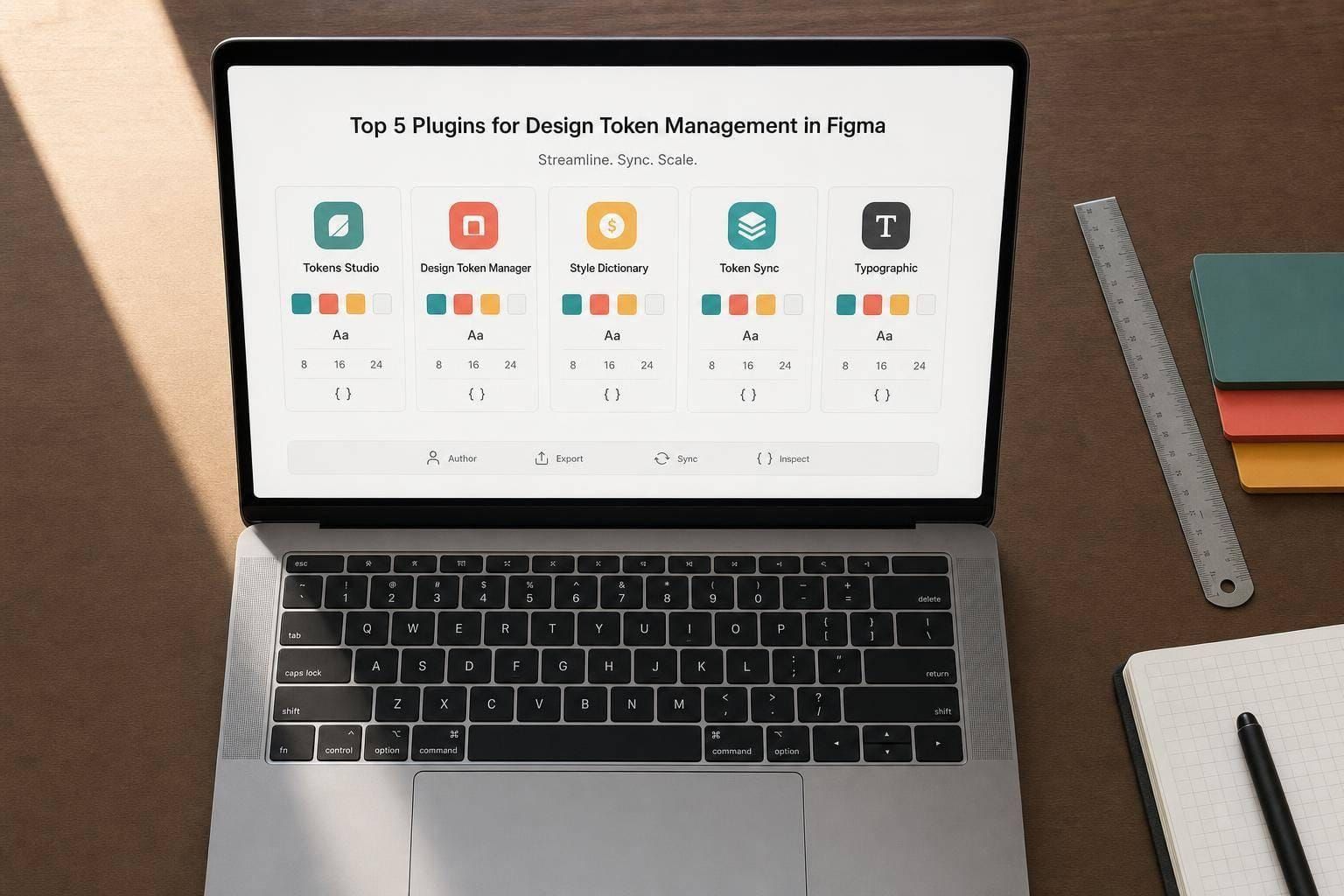
If you use Figma tokens today, the main issue usually isn’t naming colors or spacing. It’s getting tokens to move cleanly between design, JSON, Git, and developer handoff.
I’d sum it up like this: these 5 plugins split into 3 jobs:
- Authoring and sync: Tokens Studio for Figma
- Export-focused workflows: Design Tokens and Design Tokens Manager
- Platform distribution: Specify
- Inspection in Dev Mode: Tokens Studio Tree Inspector
A few points stand out fast:
- Tokens Studio is the broadest option in the list, with 20+ token types and two-way work with Variables, Styles, and Git-based JSON.
- Design Tokens is better if I already use Style Dictionary and want a simpler export flow.
- Design Tokens Manager is a lighter bridge for Figma Variables ↔ DTCG JSON, with mode-based exports.
- Specify fits teams that want one place to route tokens from Figma into code repos and delivery flows.
- Tree Inspector is for checking applied tokens layer by layer in Dev Mode, not for sync.
If I were choosing fast, I’d use this rule:
- Pick Tokens Studio if I need one main plugin
- Pick Design Tokens if export is the main job
- Pick Design Tokens Manager if I care most about W3C DTCG-style JSON
- Pick Specify if I need a token hub outside Figma
- Pick Tree Inspector if handoff and debugging are the pain point
Quick Comparison
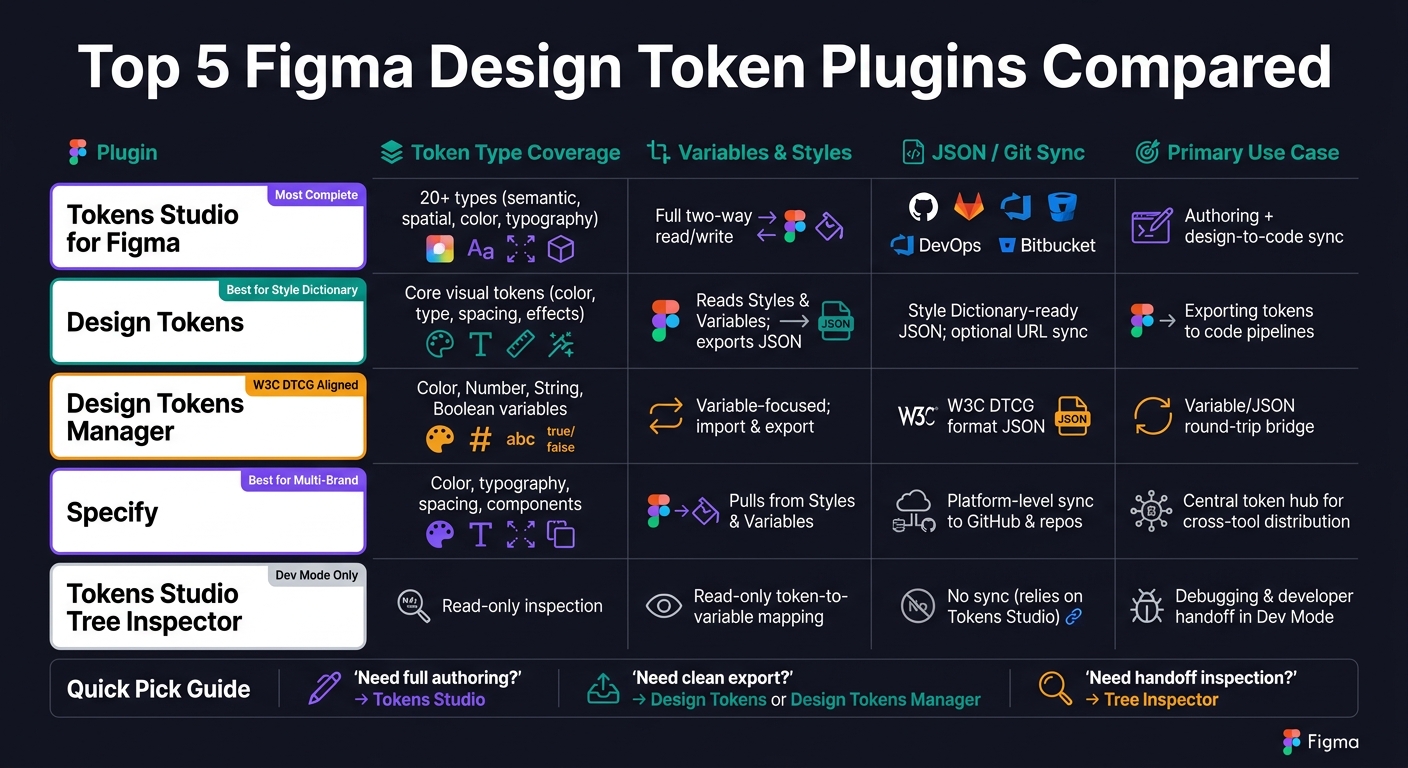
Top 5 Figma Design Token Plugins Compared
| Plugin | Best For | Variables/Styles | JSON/Git | Themes/Modes |
|---|---|---|---|---|
| Tokens Studio for Figma | Authoring + sync | Two-way support | Yes | Yes |
| Design Tokens | Export to code pipelines | Reads Figma sources | Yes | Limited in-plugin handling |
| Design Tokens Manager | Variable/JSON round-trip | Variable-focused | Yes | Yes |
| Specify | Central token distribution | Yes | Yes | Yes |
| Tokens Studio Tree Inspector | Dev Mode inspection | Read-only mapping view | No | Checks theme resolution |
Bottom line: I’d start with the plugin that fixes the bottleneck first - authoring, export, sync, or inspection - then keep the stack as small as possible.
sbb-itb-124fdbf
What to Look for in a Figma Design Token Plugin
Not every token plugin fixes the same problem. The right choice depends on the job you need it to do: authoring, sync, or handoff. So instead of picking the tool with the longest feature list, match the plugin to your workflow.
Use the criteria below to tell apart general token tools from plugins built for the way your team works.
Token Types the Plugin Can Handle
A good plugin should do more than manage color. Look for support for color, typography, spacing, sizing, border radius, shadows, and opacity. It should also support semantic aliases layered on top of those base values.
A simple way to check this is the three-layer model:
- Primitives
- Semantic tokens
- Component tokens
The plugins in this list are judged on whether they support the same structure teams use in actual design systems. If a plugin can't handle that hierarchy, it'll likely hit a wall once your system grows.
Once you've checked token depth, the next step is making sure the plugin works with your current Figma setup.
Support for Figma Variables and Styles
Pick a plugin that can read Styles, map them to Variables, and sync both directions. In plain terms, it should support import and export, not just a one-way push.
That matters because teams rarely work in a straight line. Tokens move back and forth between design files, shared libraries, and code. If the plugin can't handle that round-trip flow, you'll end up doing patchwork by hand.
The plugin should act as the source of truth, not just a one-time export button.
JSON, GitHub, and Repository Sync
This is the point where design tokens meet engineering. The plugin should export a stable, standards-aligned JSON format, ideally one that works with the W3C Design Tokens Community Group (DTCG) spec. It should also connect straight to Git platforms like GitHub, GitLab, Bitbucket, and Azure DevOps so token updates can be version-controlled and reviewed like code.
Features like automated commits or sync on save cut out manual work. More importantly, they help keep tokens aligned across design and engineering without extra back-and-forth.
After that, check whether the plugin can handle modes and brand variants without messing up the export format.
Theme and Multi-Brand Workflows
If your team works across themes or brands, look for plugins that support multiple brands, sets, and modes through Variable Collections and Modes.
The main test is simple: can the plugin manage multiple brands, sets, and modes inside one project without turning into a mess?
For multi-brand systems, there's another small but smart check. Try not to bake brand names into token names. That makes tokens easier to reuse across different contexts instead of locking them to one label from day one.
Authoring vs. Export vs. Inspection
No plugin is equally good at all three jobs.
Authoring tools are built for defining token hierarchies, enforcing naming rules, and setting up theme structures. Export-focused plugins care more about JSON output, Git sync, and pipeline integration. Inspection tools help you see which tokens are applied to specific layers, which is handy during design review and Dev Mode handoff.
A lot of teams don't rely on one plugin for everything. They use one for authoring, another for sync, and a third for inspection.
The better move is to choose based on the part of the workflow that causes the most friction, not just the number of features on the page.
1. Tokens Studio for Figma
Tokens Studio is the most complete option here for teams that want a single plugin to create tokens, sync them, and keep Figma in step.
It supports 23 token types, including color, typography, spacing, sizing, radius, opacity, shadows, and border width.
It also handles layered aliases. That means base tokens can feed semantic tokens like color.primary or color.background.surface. Change the base value, and the downstream tokens update on their own.
On the Figma side, Tokens Studio can import Figma Variables or Styles, map each Variable to a token and each Mode to a set, then export updated Variables and Styles back to Figma.
For syncing, it works with JSON across GitHub, GitLab, Azure DevOps, Bitbucket, JSONBin, read-only URLs, and Supernova. It also supports the W3C DTCG format with standardized $value and $type fields.
Themes are built in too, which matters for light/dark setups and multi-brand systems. Token sets can be grouped into themes and exported as Figma Variable modes. Shared foundation tokens stay in one place, while brand overrides remain separate.
If your team needs a tighter inspection or handoff flow, the next tools may be a better fit.
2. Design Tokens
Design Tokens (by Lukas Oppermann) is a lightweight export plugin for teams that already use Style Dictionary. It has a narrower focus than Tokens Studio. It isn't made for deep authoring or live sync. Its main strength is clean export.
It supports color, type, spacing, sizing, layout, effects, opacity, and motion.
The plugin uses Figma's native styles and variables as the source, then exports Style Dictionary–ready JSON for CSS variables, SCSS maps, Android XML, or iOS Swift constants.
Once tokens leave Figma, Git becomes the control point. The plugin can send tokens straight to a set GitHub repository. A common flow looks like this: designers update styles in Figma, export JSON, and commit the files to a repo. That setup works well for teams that want manual, auditable token releases instead of live sync.
Design Tokens is more limited when it comes to theme management and inspection. If you're dealing with multi-brand or light/dark setups, you'll handle that through how you name and structure the JSON, not through a visual theming interface inside the plugin. It also isn't built for inspecting tokens layer by layer.
That makes it a good fit for teams that want a simpler pipeline.
3. Design Tokens Manager
Design Tokens Manager is a free Figma Community plugin by Wenju Li built to connect Figma Variables with the W3C Design Tokens Format (DTCG). In plain English, it sits between a simple exporter and a bigger token system.
It supports Figma’s native Color, Number, String, and Boolean variable types. For most teams, that covers the core variable types used in token workflows.
When you export, each mode becomes its own JSON file, tied together through a manifest.json. That setup keeps light and dark themes, or brand variants, neatly split for downstream use.
Import works as well. So if your team stores tokens in a repository, you can bring that JSON back into Figma Variables and keep design and code in sync. Styles export works; Styles import is still coming soon, which means the plugin is still mainly built around variables, even if part of your process leans on styles.
Design Tokens Manager is a lightweight export/import bridge, not a governance layer. Its main draw is the round-trip between Figma Variables and DTCG-compliant JSON. For layer-level inspection and handoff, the next plugin goes further.
4. Specify
Unlike a basic exporter, Specify gives teams one place to manage tokens before they hit code. It sits between Figma and your code pipeline as a central token layer, which makes handoff a lot cleaner. The Specify – Sync Tokens and Assets widget connects straight to a Specify repository. From there, Specify can ingest tokens from Variables, Styles, or Tokens Studio JSON, then normalize them into its Specify Design Token Format (SDTF).
For Tokens Studio users, Specify can pull JSON from a Git repo through a Remote URL source. It fetches the file, parses it, and keeps the repository up to date as the source changes.
It also lets teams split brands and themes into separate sources. That means each brand or theme can map to its own source, instead of getting lumped together. Developers can then pull the right theme through the CLI, REST API, or Git integrations.
Once those tokens are organized, Specify pushes them into downstream outputs. This is where it stands out. It can feed tokens into build pipelines, generate CSS custom properties, and keep code in sync with the latest design tokens. For design systems teams working across multiple platforms, that kind of delivery setup can save a lot of friction.
5. Tokens Studio Tree Inspector
Tokens Studio Tree Inspector is a Dev Mode plugin built for inspection and handoff. It works in files that already use Tokens Studio, so its role starts after tokens are in place.
When you select a component or frame in Dev Mode, Tree Inspector shows all tokens applied to that selection and its nested layers in a single tree view. That gives teams a fast way to audit token coverage instead of only checking applied styles. For example, a developer reviewing a card component can see that the background maps to a surface token, the label uses a text-primary token, and the padding comes from a spacing token. In plain English, it helps you check whether tokens resolve the way you expect across variants.
The plugin also shows how tokens connect to Figma Variables and Styles. That matters a lot in light/dark and multi-brand files, where one small mismatch can send you down a rabbit hole. If you're trying to confirm that the right theme is resolving, this view makes the job much easier.
Tree Inspector does not handle JSON or Git sync directly. That part stays in the main Tokens Studio plugin. So think of Tree Inspector as the place where you verify applied tokens after sync, while JSON and Git stay in Tokens Studio for Figma.
Here’s where each tool fits:
| Use Case | Tool |
|---|---|
| Token authoring and JSON/Git sync | Tokens Studio for Figma |
| Export to Variables and Styles | Tokens Studio for Figma |
| Layer-level token inspection and debugging | Tokens Studio Tree Inspector |
In the comparison table below, Tree Inspector belongs in the debugging and handoff stage.
Quick Comparison Table
Each plugin lines up with a different part of token work: authoring, export, sync, or inspection. The table below shows where each one fits, so you can spot tradeoffs before picking your stack.
| Plugin | Token Type Coverage | Variables & Styles Support | JSON / Git Sync | Multi-Theme Support | Primary Use Case |
|---|---|---|---|---|---|
| Tokens Studio for Figma | 20+ token types, including semantic and spatial tokens | Full read/write; limited auto-linking on style imports | Two-way sync with GitHub, GitLab, Azure DevOps, and other remote JSON providers | Built-in theme and token set support for light/dark and multi-brand workflows | Authoring and design-to-code sync |
| Design Tokens | Core visual tokens from Figma Styles, Variables, and token components | Extracts from Styles, Variables, and token components; exports to JSON | Style Dictionary–ready JSON export; optional URL sync | Inherits theming from the JSON source; supports multiple token files | Exporting Figma tokens to code pipelines |
| Design Tokens Manager | Core Variables: color, number, string, boolean | Exports Variables to JSON and imports JSON back into Variables; supports collections and modes | JSON export/import using the W3C Design Tokens Format Module spec | Mode-based JSON export per collection; fits light/dark and multi-theme pipelines | Variable/JSON bridge for standardized token pipelines |
| Specify | Cross-tool token coverage: color, typography, spacing, components | Pulls from Figma Styles and Variables; syncs into code repositories | Platform-level sync to GitHub and other repositories | Multi-brand token management at the platform level | Central token hub for cross-tool distribution |
| Tokens Studio Tree Inspector | Read-only token inspection | Shows token-to-Variable/style mapping | No sync; relies on tokens already managed by Tokens Studio | Verifies theme resolution across nested layers | Debugging and developer handoff in Dev Mode |
Use this table to narrow your shortlist. Then match the stack to your team size and workflow.
How to Choose the Right Plugin Stack for Your Team
Use the comparison table above to map each plugin to a job, then choose the stack that fits how your team works. No single plugin handles every part of token work equally well. The best setup depends on what you need most: authoring tokens, syncing them, or checking them inside Figma.
Best Stack for Small Design Teams
For a team of 2–5 designers with limited engineering support, keep things simple. Use Tokens Studio for authoring and JSON export. Export tokens as JSON, then share them with developers through a shared folder or a light repo. You don't need a CI pipeline yet.
Add Tokens Studio Tree Inspector only if you want a fast way to check token application before handoff. A lean stack is easier to learn, easier to run, and less likely to slow the team down.
As token ownership grows, move from single-plugin authoring to Git-backed review.
Best Stack for Design Systems Teams
Teams running shared libraries across multiple products or brands need tighter governance. The core of this stack is Tokens Studio for authoring. Split tokens into base and semantic layers, then review changes in GitHub before they reach shared libraries or codebases.
Pair it with Specify if your team needs a stronger distribution layer for downstream teams and repositories. It also helps to line up token and component names between Figma and code. That cuts drift and makes updates easier to manage across products.
Best Stack for Design-to-Code Pipelines
When tokens need to move from Figma into production code in a reliable way, use this pipeline: Tokens Studio exports JSON, GitHub handles change review, and Style Dictionary turns tokens into outputs engineering can use.
At that point, token management becomes a code pipeline, not just a design workflow. Style Dictionary can transform tokens into CSS custom properties, Tailwind configs, or SCSS variables, depending on what engineering needs. Keep token names easy to search in the repo and in Dev Mode.
When this stack is already set up, the focus shifts from authoring to validation.
Best Stack for Debugging and Handoff
When the main goal is inspection, not authoring, Tokens Studio Tree Inspector is the right fit. Use it after tokens are already authored and synced, not instead of that upstream work.
It's especially helpful when a component looks right on the screen but may be pointing to the wrong token under the hood. That helps catch token mismatches before implementation.
Conclusion
The right choice comes down to what your team is missing right now: authoring, export, sync, or inspection.
Once you’ve pinned down that friction point, pick the plugin that fits your current Figma setup instead of twisting your workflow around a new tool. And if that plugin also needs to pass tokens cleanly to engineering, lean toward DTCG-aligned output. That helps keep the stack small, portable, and easier to maintain.
Start with the smallest stack that solves the problem. For more tools and templates, explore our curated design system resources.
FAQs
Which plugin should I start with?
If you’re just getting started with design tokens in Figma, use Figma’s built-in collaboration and version history first. They make it easier to keep specs in sync and cut down on back-and-forth.
If accessibility is your main focus, Stark is a solid pick for real-time contrast checks right inside your workflow. DeveloperUX also offers UX education that can help you use these tools with more confidence.
Do I need Git to manage design tokens?
No. You do not need Git to manage design tokens.
That said, Git is a smart choice if you treat design assets like code.
It helps teams track changes, review edits, work in branches, and keep text-based tokens like JSON or Sass in sync with application code. It also gives teams more control when shipping tokens to production, especially when using semantic versioning and automated releases.
Can these plugins handle multiple themes or brands?
Yes. Many design token management tools support multi-brand and multi-theme setups, including light, dark, and high-contrast modes.
With semantic tokens, a change in one library can flow through products and themes in a consistent way. More advanced tools also help teams keep versioned documentation in sync and coordinate releases across a larger ecosystem.